


WordPress docs layouts & styles
- weDocs Pro
- Updated Sep 29, 2023
- 1 min read

In this documentation, we’ll show how you can use some of the pre-built layouts and styles to make your WordPress product knowledge base more professional and good-looking!
Let’s get started!
First, click on “settings” and you’ll find “Layouts and Styles“.
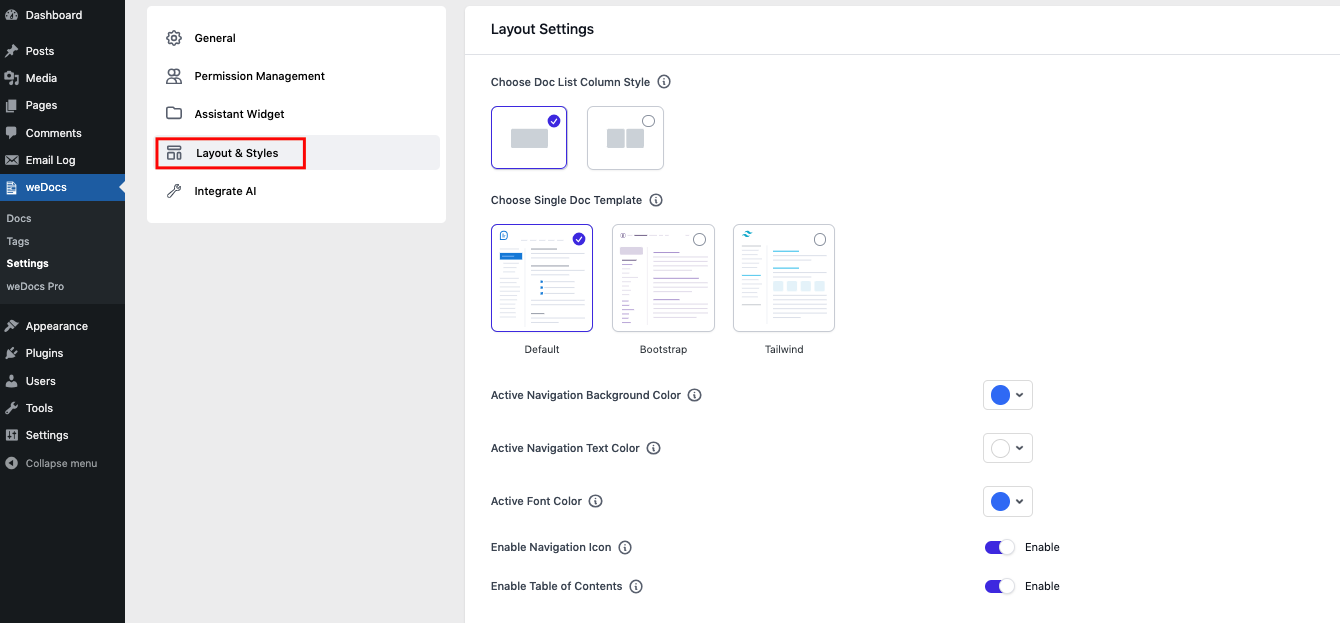
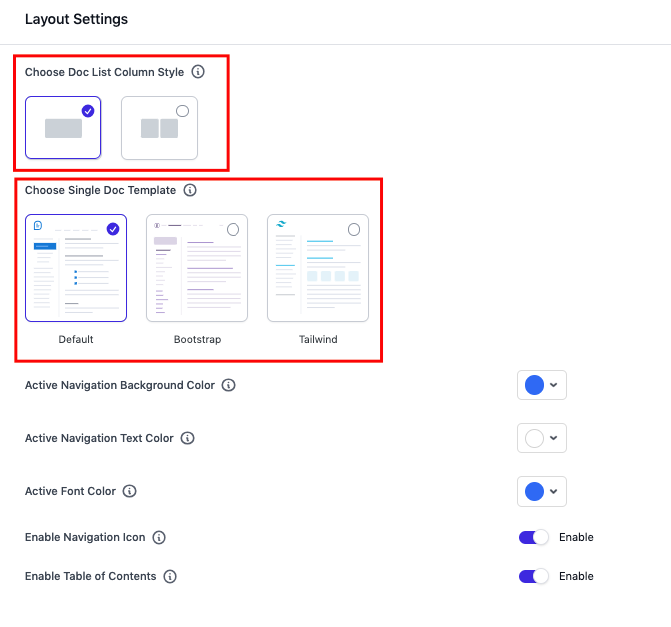
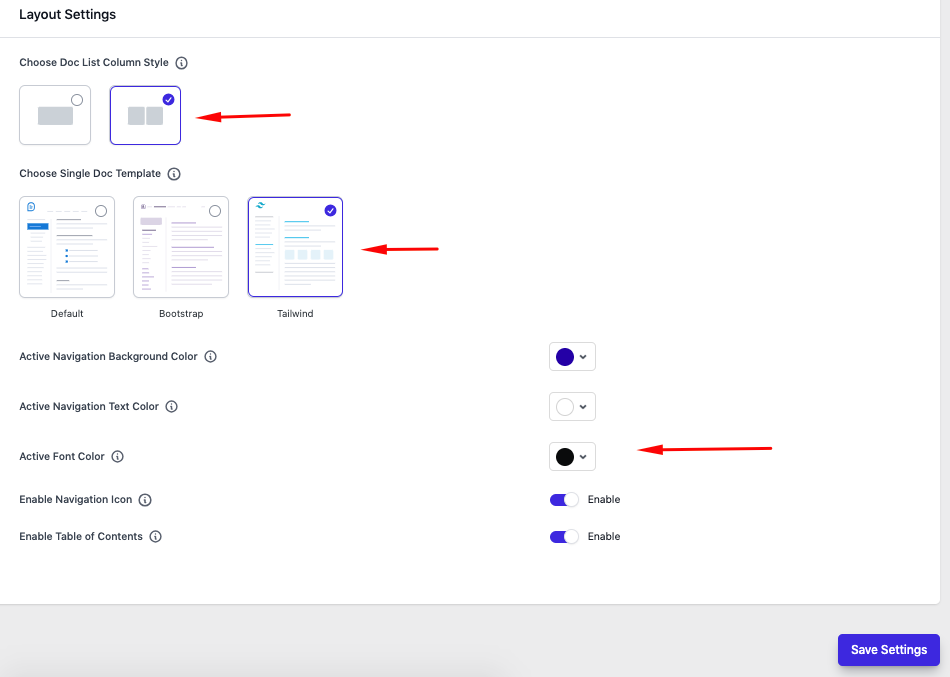
In the layout settings, you’ll get two options.
First, you can choose the documentation page layout, and second, you can choose a different single documentation page templates.
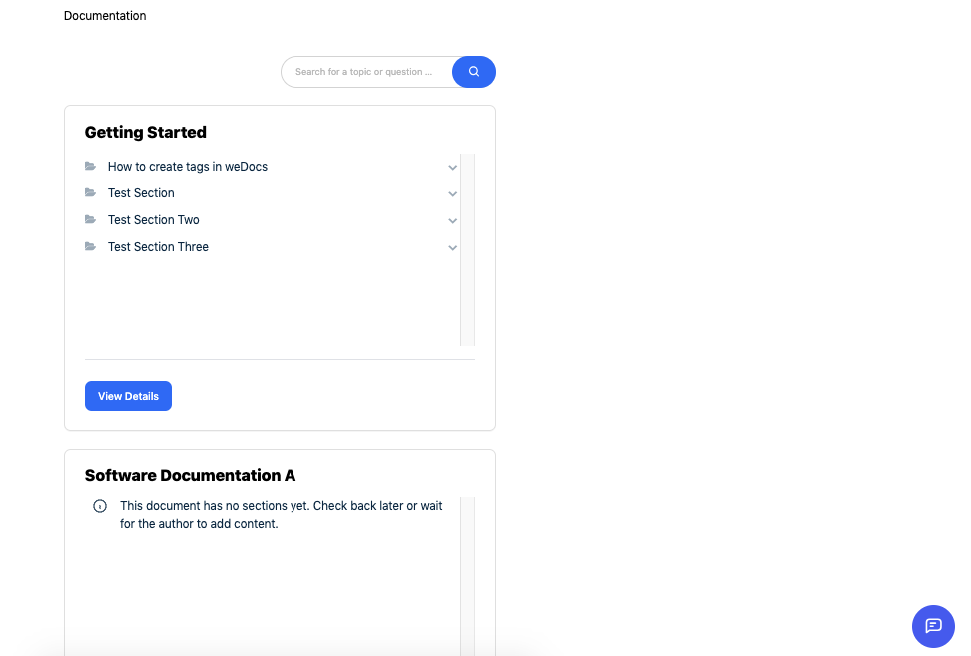
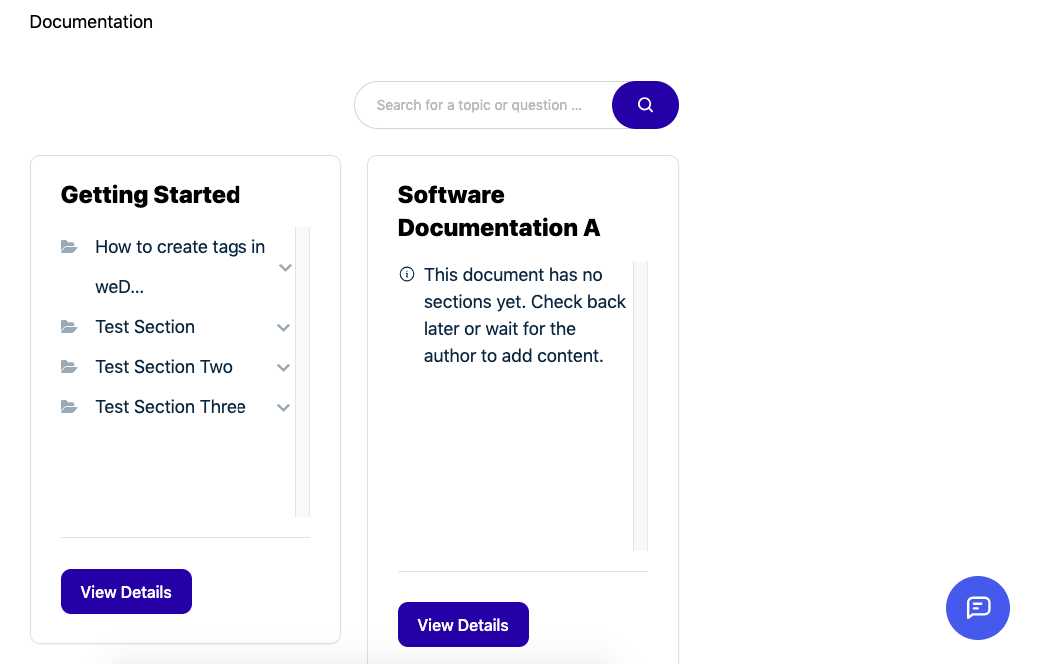
Here’s a preview of the documentation page!
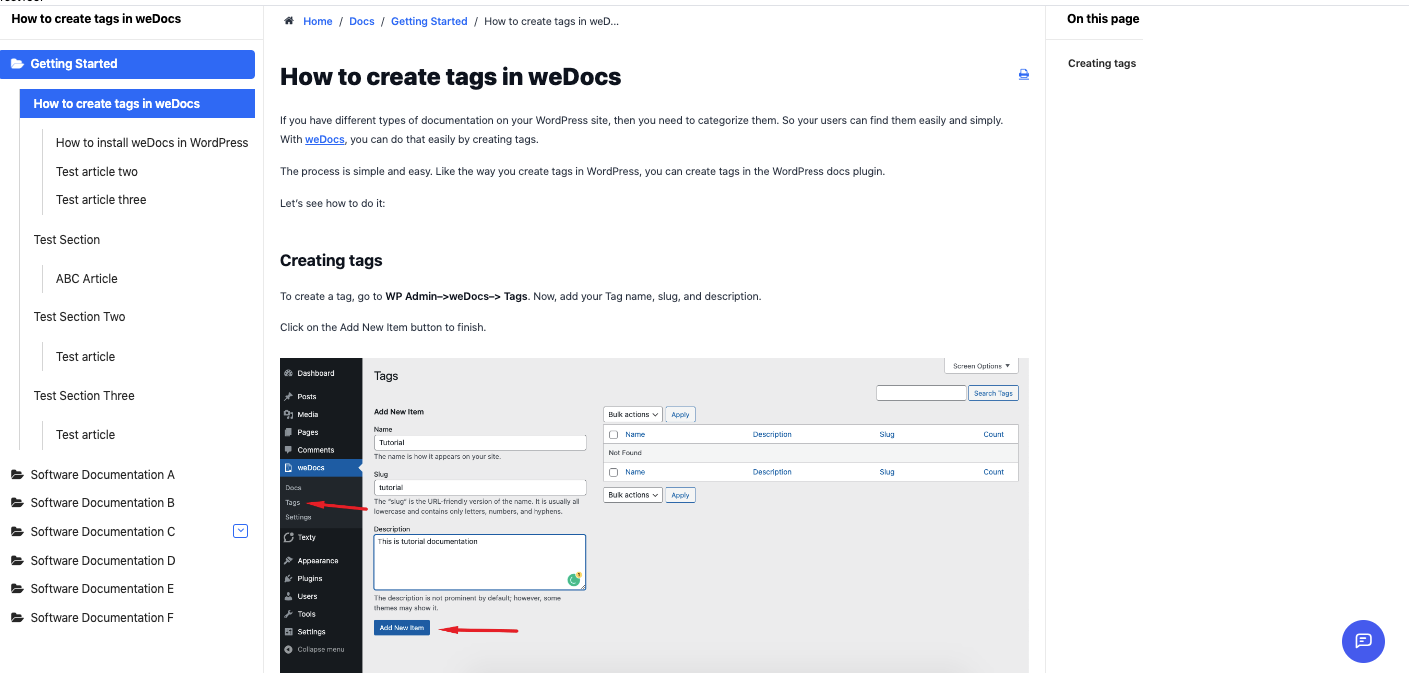
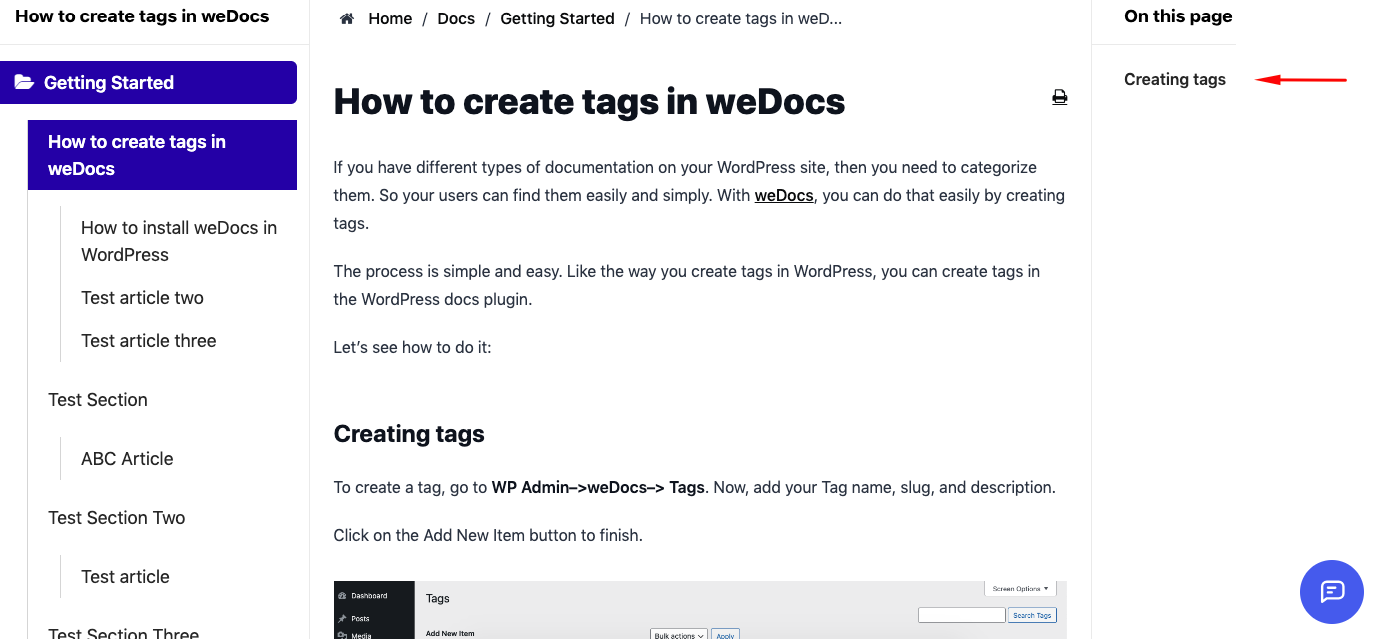
And here’s a preview of how a single documentation post looks.
Let’s now change the settings a bit!
Preview of the documentation page!
Preview of the Tailwind template and other options!
So that’s all! This is how you can change the styles and layout of your WordPress documentation using weDocs.
Last updated on
Filed under Theme and Styles of weDocs
Our support team can walk you through it.