


Glossary
Stop explaining the same term in every article. Set up the weDocs Pro Glossary once and readers get the definition in a tooltip wherever the term appears.
- weDocs Pro
- Updated Sep 24, 2026
- 4 min read

Stop explaining the same term in every article. Set up the weDocs Pro Glossary once and readers get the definition in a tooltip wherever the term appears.
Documentation is full of terms your readers do not know. Acronyms, feature names, technical words. Explaining each one inside every article makes the writing long, and skipping it leaves readers stuck.
The Glossary in weDocs Pro solves this. You add a term once with a short definition and an optional link. weDocs then finds that term across your documentation and shows the definition in a tooltip when a reader hovers over it.
The whole process takes a few minutes. Turn the feature on, add your first term, then check how it looks to a reader.
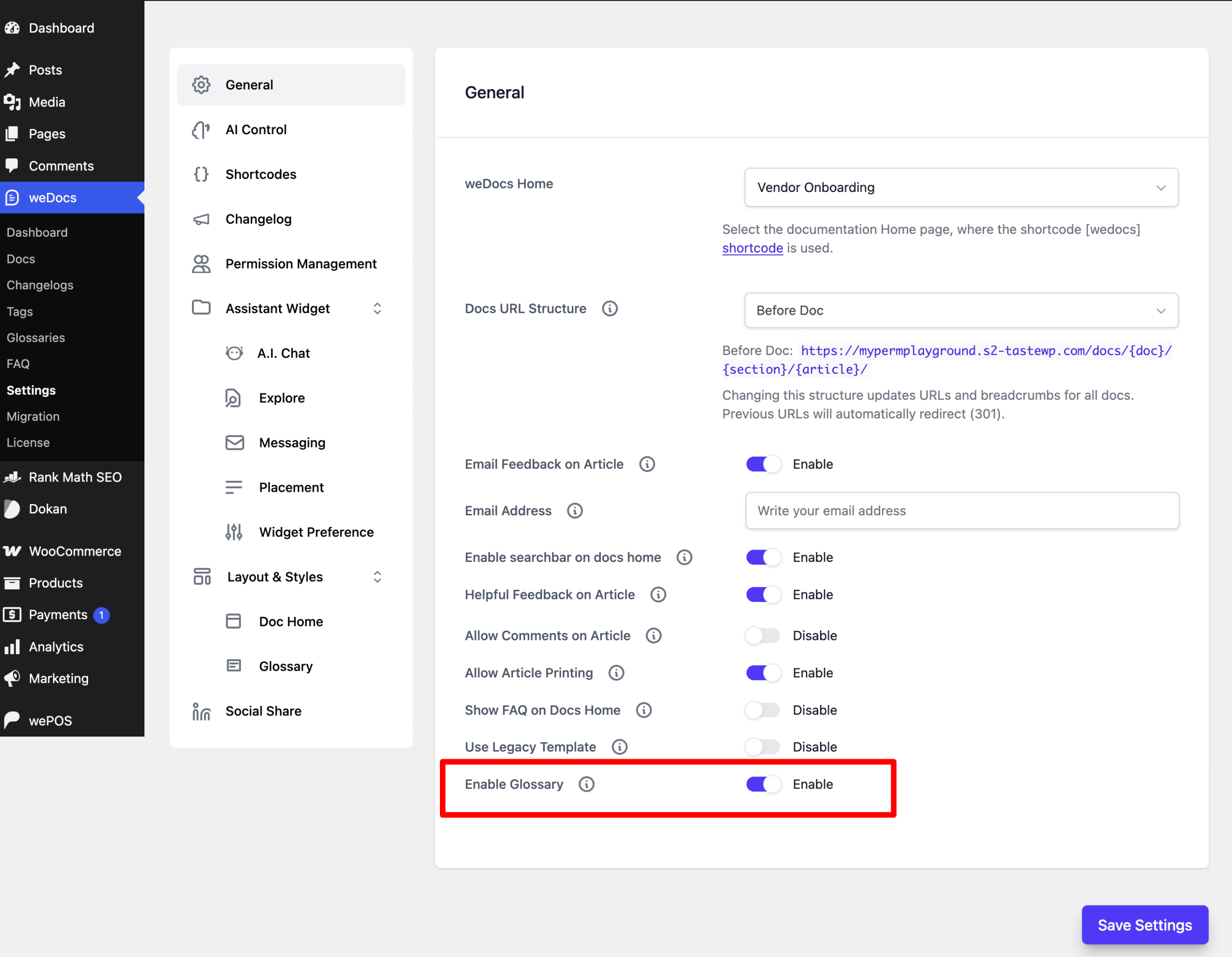
Go to weDocs > Settings and stay on the General tab. Scroll to the bottom of the list and switch Enable Glossary to Enable.
Click Save Settings. The Glossaries menu item becomes available under weDocs, and your terms start rendering on the front end.
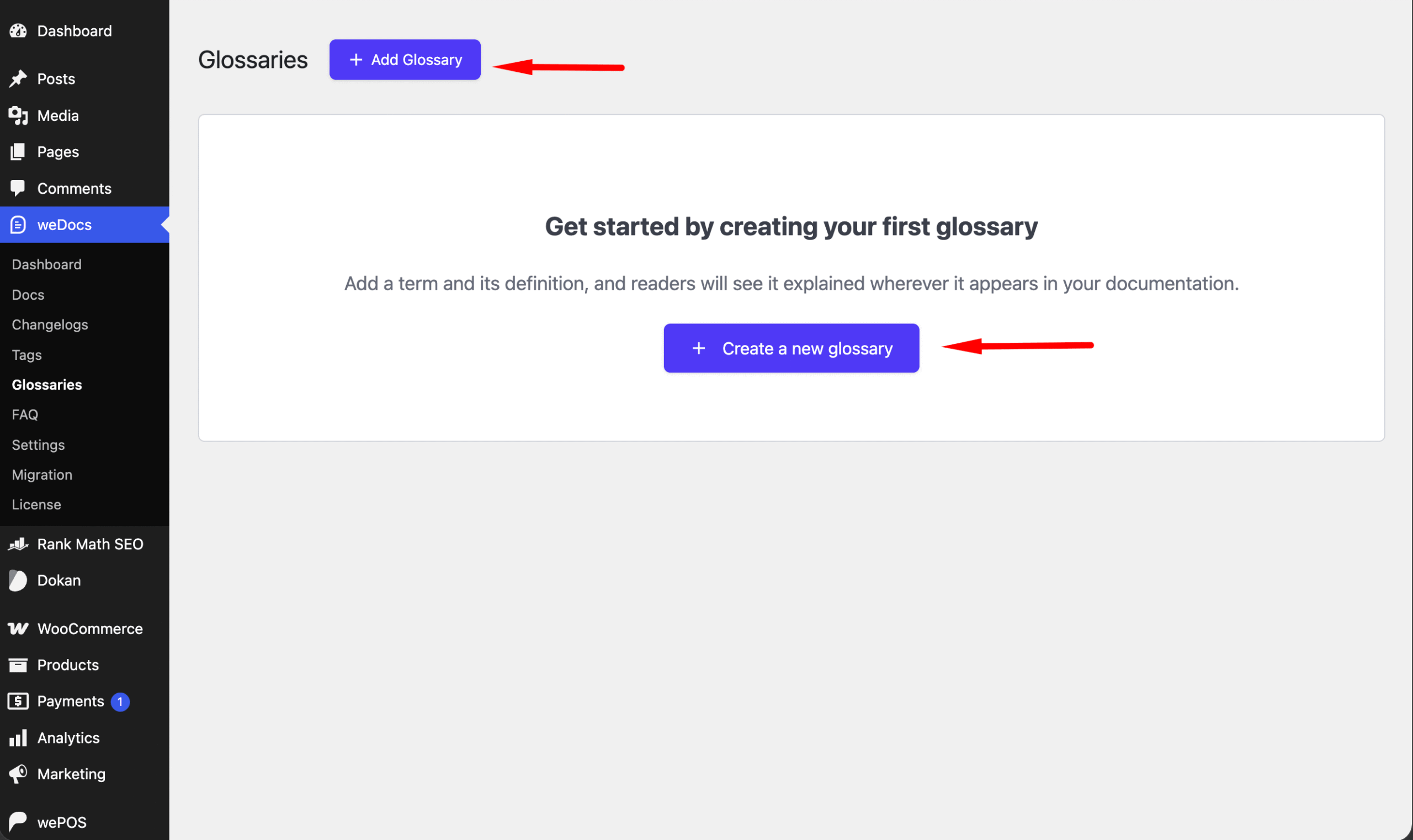
From your WordPress dashboard, go to weDocs > Glossaries.
Before you add anything, the page shows an empty state explaining what the feature does, with a Create a new glossary button in the middle. An Add Glossary button also sits at the top of the page next to the Glossaries heading. Both open the same window.
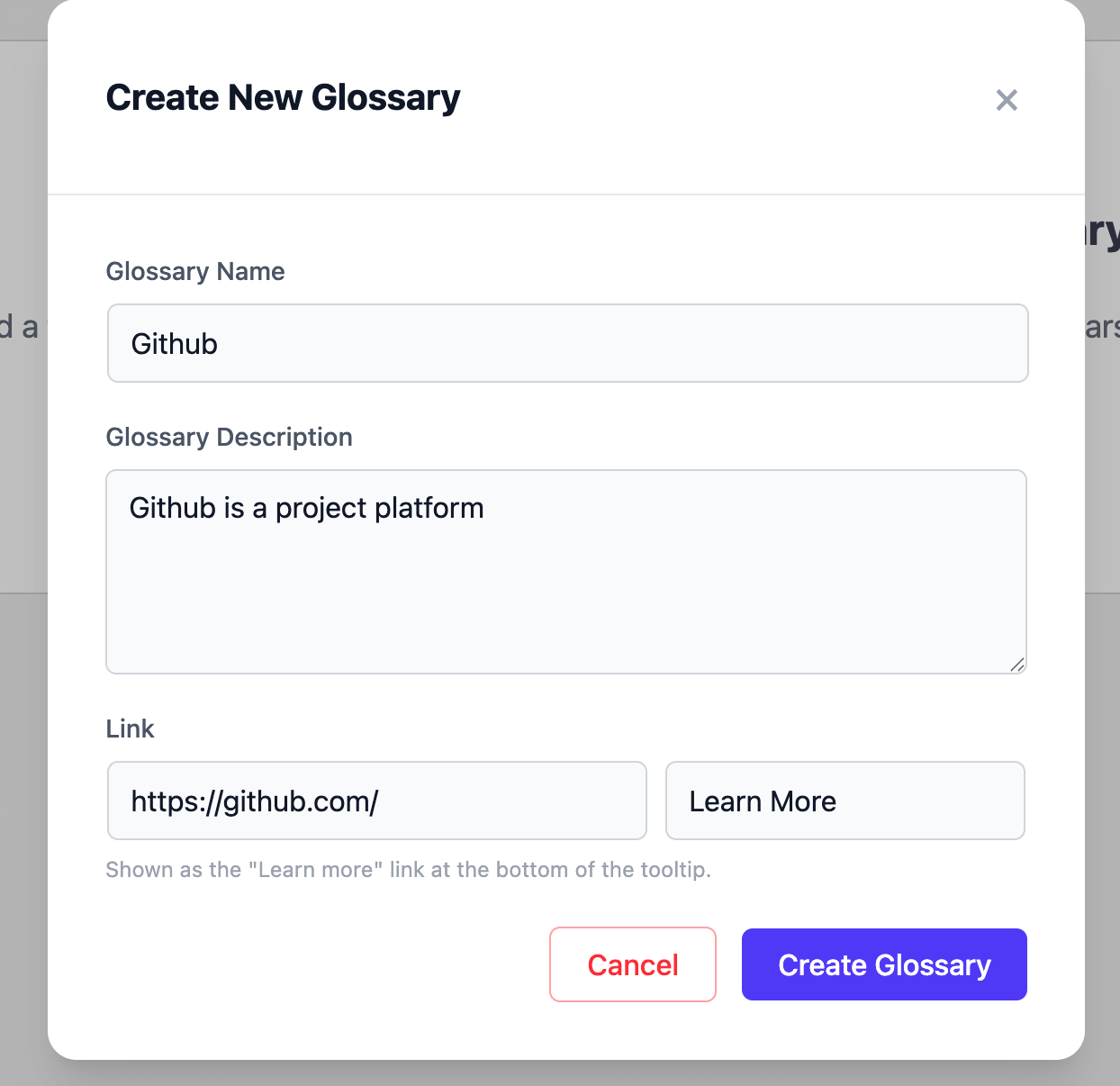
Click either button and the Create New Glossary window opens. It has three parts.
Click Create Glossary to save, or Cancel to close without saving.
Repeat for every term you want covered. Add the words your support team explains most often, since those are the ones costing you tickets.
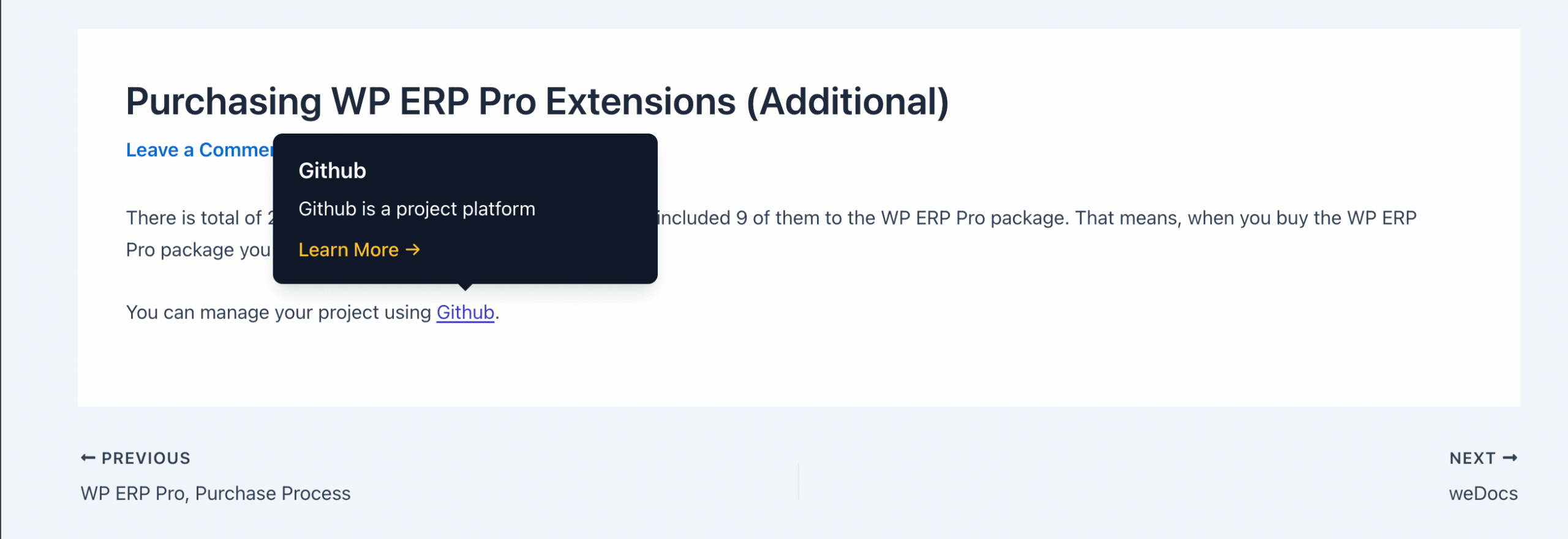
Open any documentation article containing one of your terms. You do not need to edit the article or add anything to it. weDocs finds the word on its own.
The term now appears as a link inside your text. Hovering over it opens a tooltip carrying the name, the description, and the Learn More link if you set one.
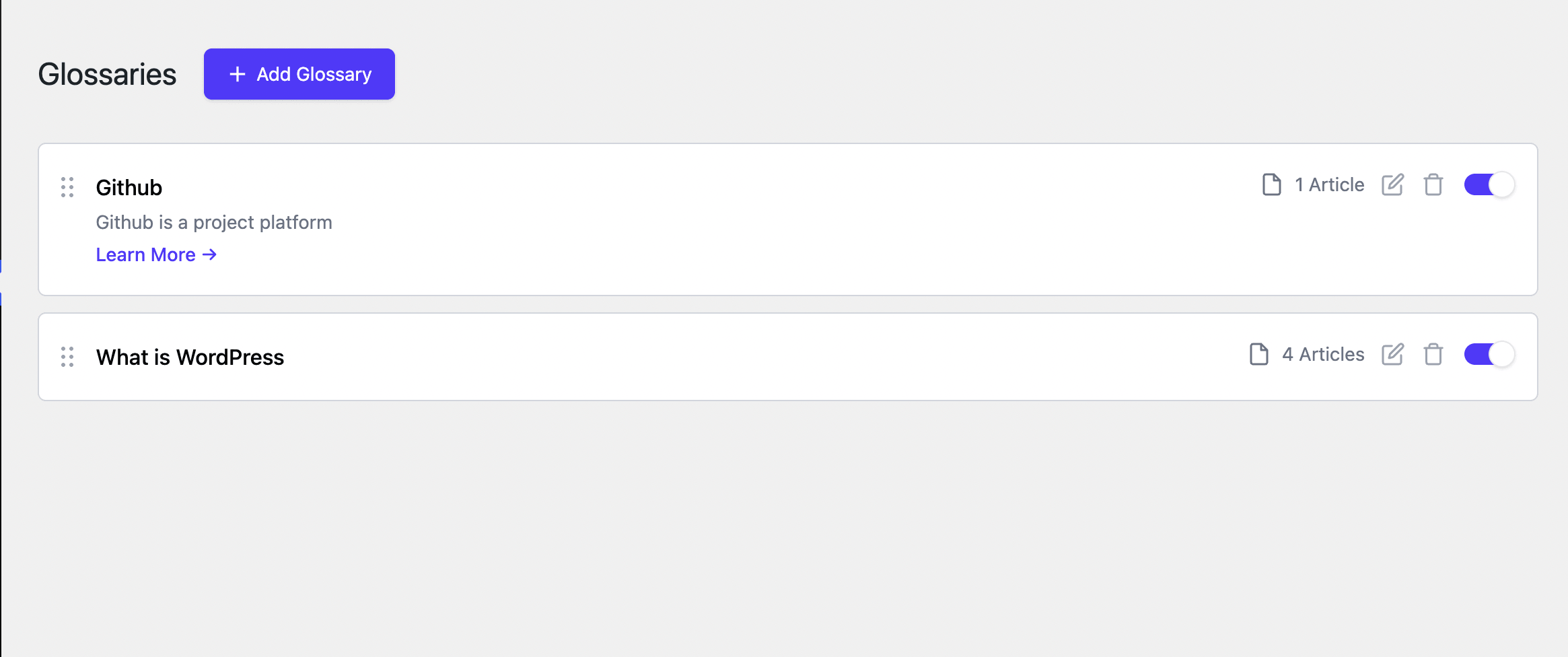
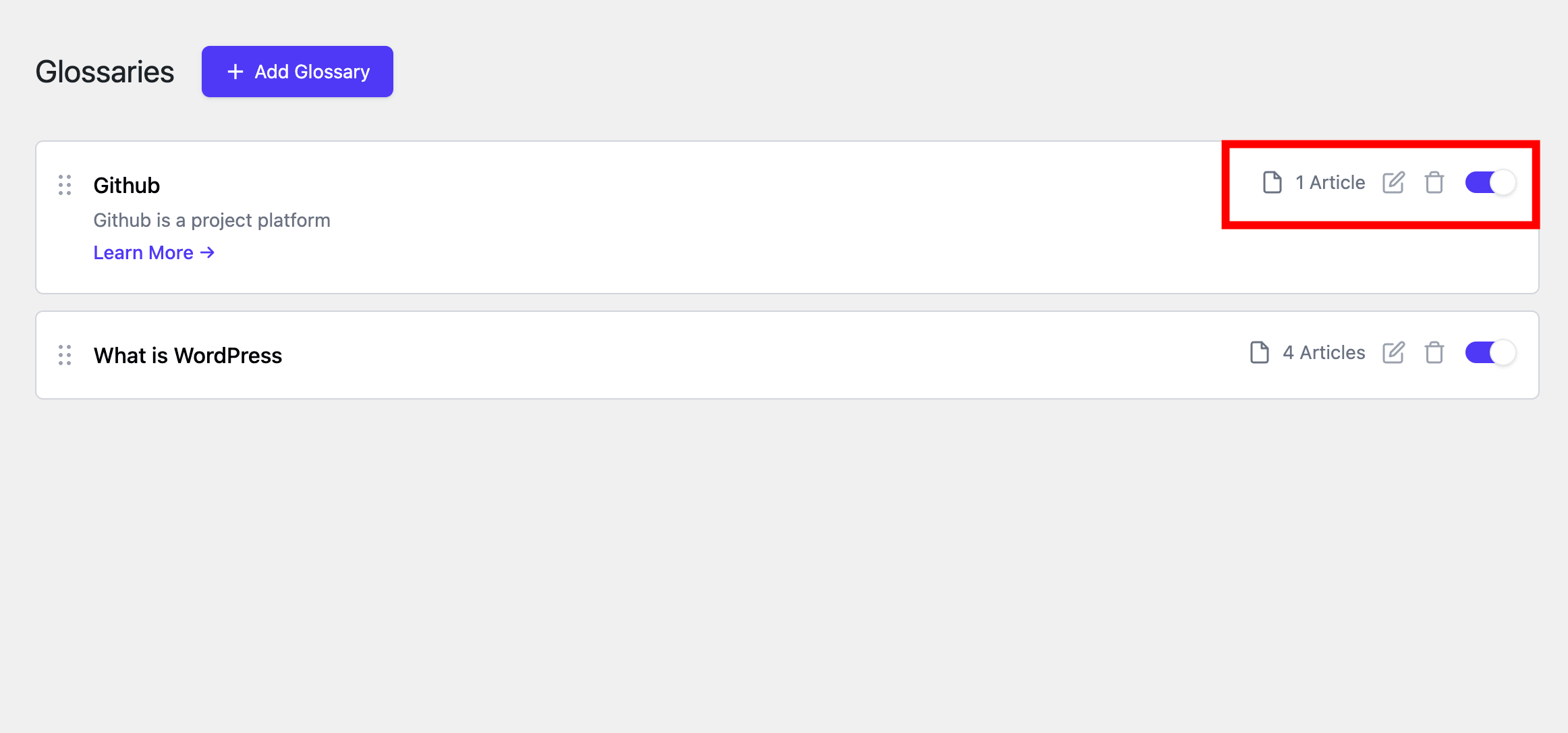
Back on the Glossaries page, each term sits in its own row with a set of controls.
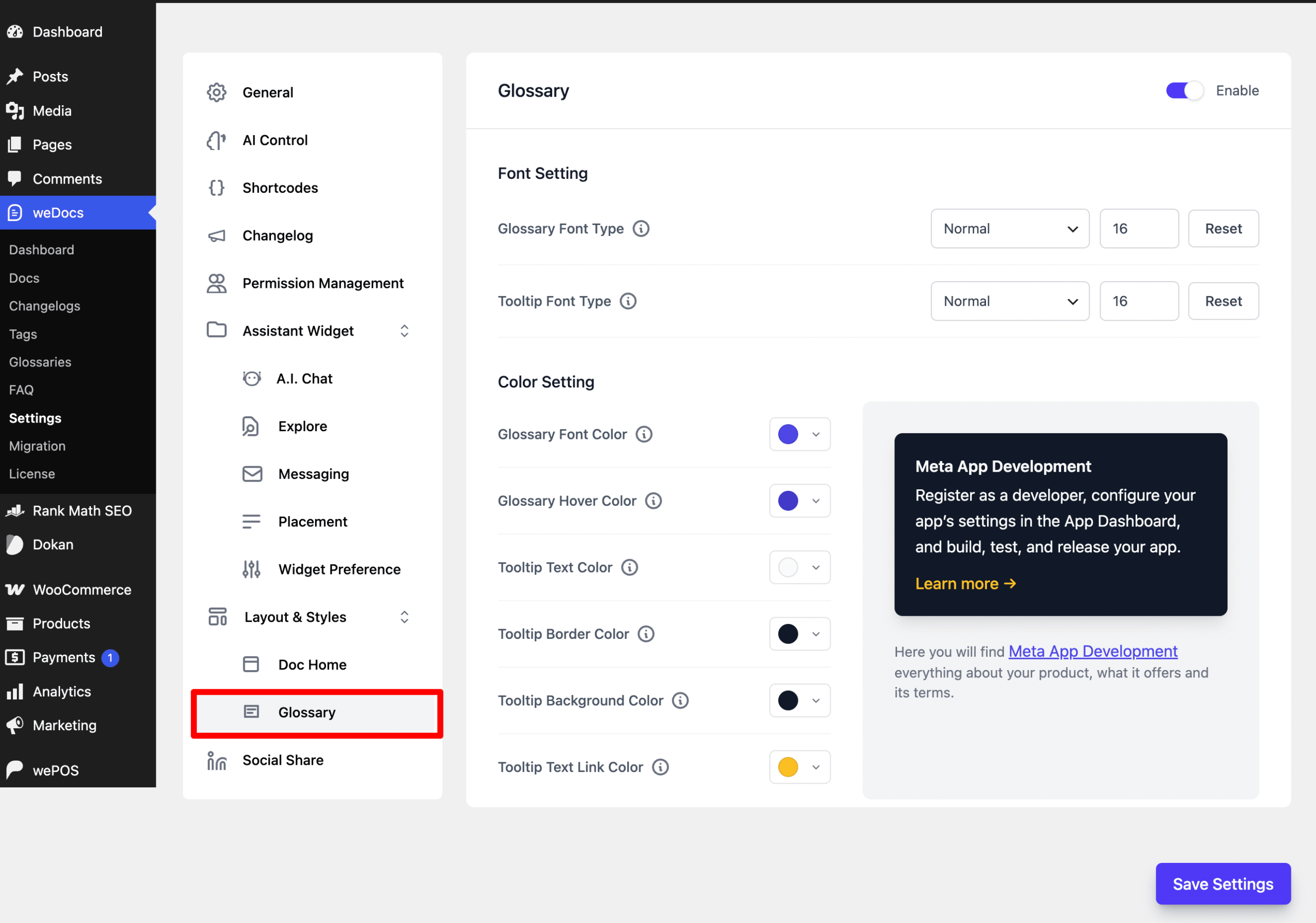
Go to weDocs > Settings and open Layout & Styles > Glossary. This panel controls how the term and its tooltip look on your site.
Font Setting covers two items.
Each has a Reset button beside it that returns the value to the default.
Color Setting covers six.
The panel carries its own Enable toggle at the top right, alongside the one in General settings. Click Save Settings when you are done.
The Glossary earns its place because the work does not repeat. Most teams handle unfamiliar terms by explaining them again in every article, which bloats the writing and still leaves gaps whenever somebody forgets. Defining a term once and letting weDocs surface it everywhere removes both problems.
Start small. Add the five or six words your support team explains most often, publish, then watch the article count on each row. Terms appearing across many articles are the ones saving you the most questions, and terms sitting at zero are telling you the word is not actually used in your documentation.
Keep the definitions short. A tooltip that fills half the screen makes readers close it, and at that point you have interrupted them instead of helping. One or two sentences, with the Learn More link carrying anyone who wants the full story.
Last updated on
Filed under weDocs Pro
Our support team can walk you through it.