


User Permission management
Here in this tutorial, we'll show how to manage the user permission section and customize the settings for your documentation!
- weDocs Pro
- Updated Jul 10, 2026
- 3 min read

Here in this tutorial, we'll show how to manage the user permission section and customize the settings for your documentation!
You can manage your user’s permission-related things using weDocs. You may have a large team that regularly uses your product knowledge base. However, giving access to all users may violate privacy or pose the threat of losing sensitive information.
To mitigate these issues, the WordPress documentation plugin is right there to help. Yes, you can easily manage, customize, and set your own priority-based conditions on your documentation for different users.
Let’s see how to do it step-by-step!
First, open the settings in weDocs. For that, navigate to weDocs>Settings>Permission Management.
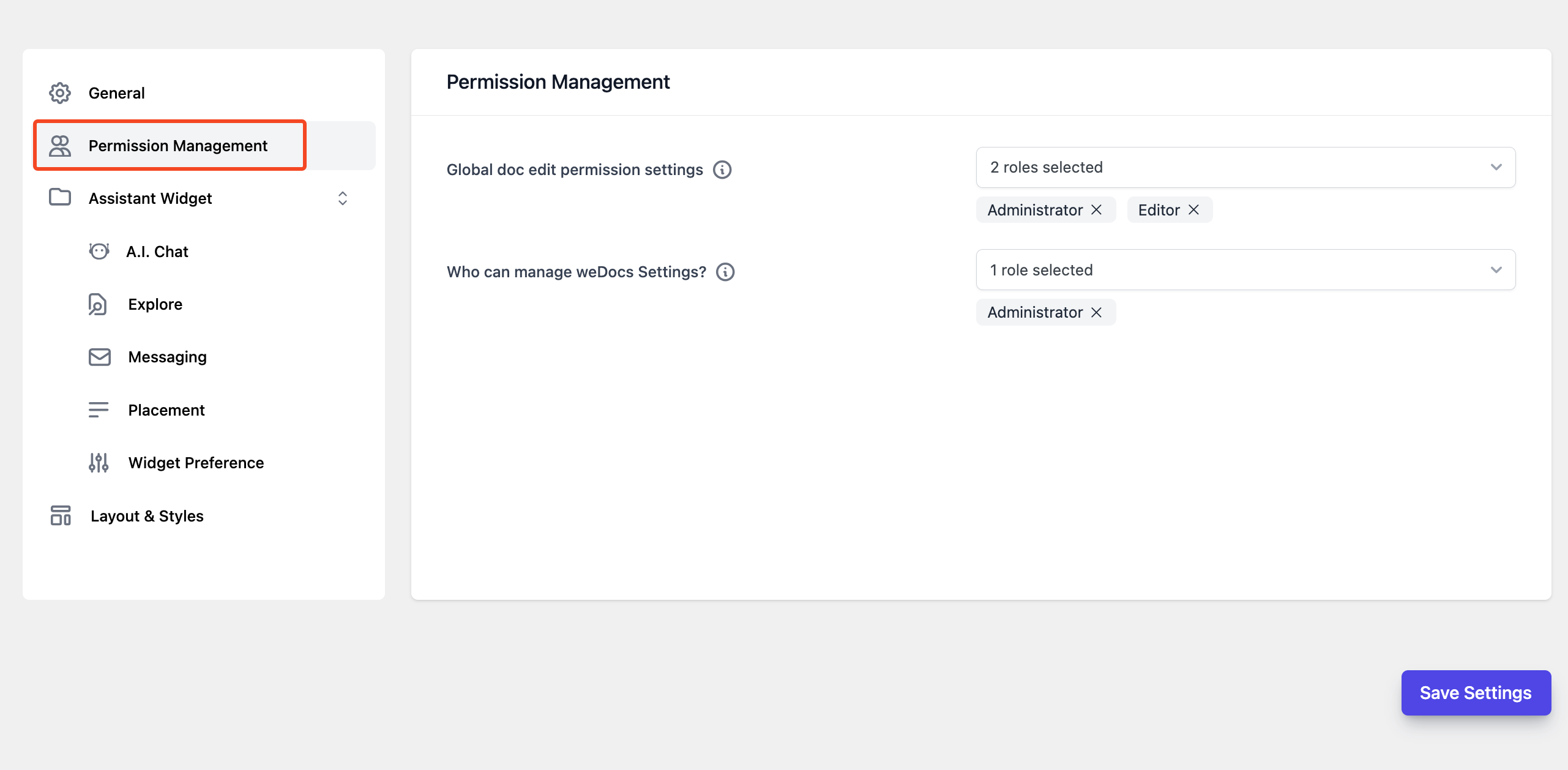
Here you’ll get two options:
By configuring this option, you can determine who will get edit access to all the documentation.
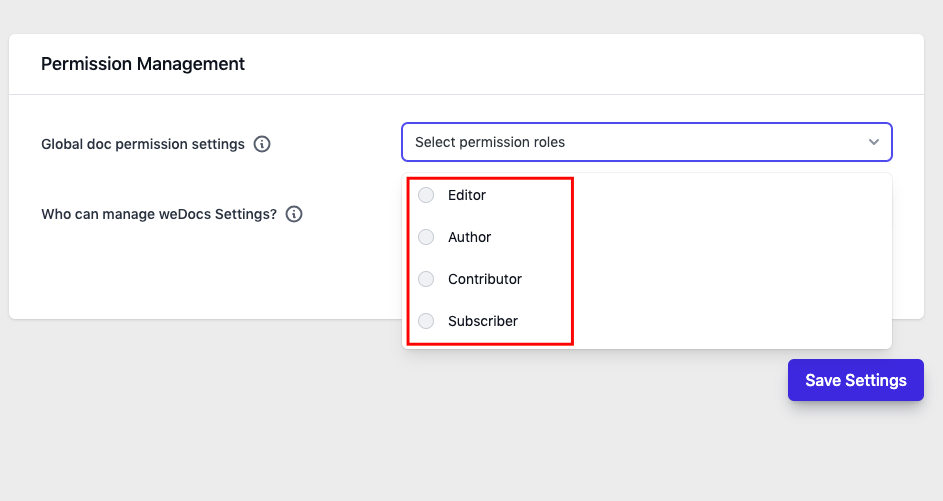
Let’s see how it works!
Suppose you want to give edit access to your editor. For that, choose the editor from here.
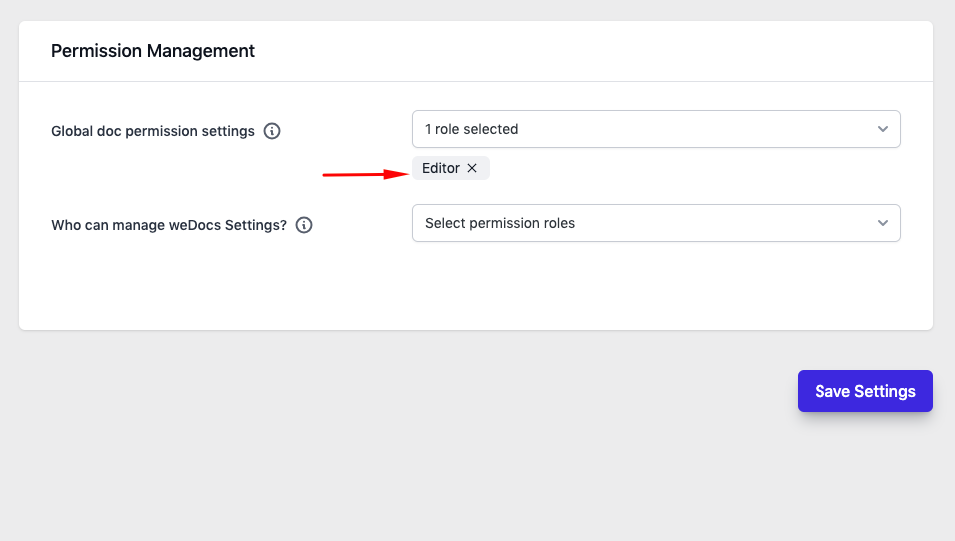
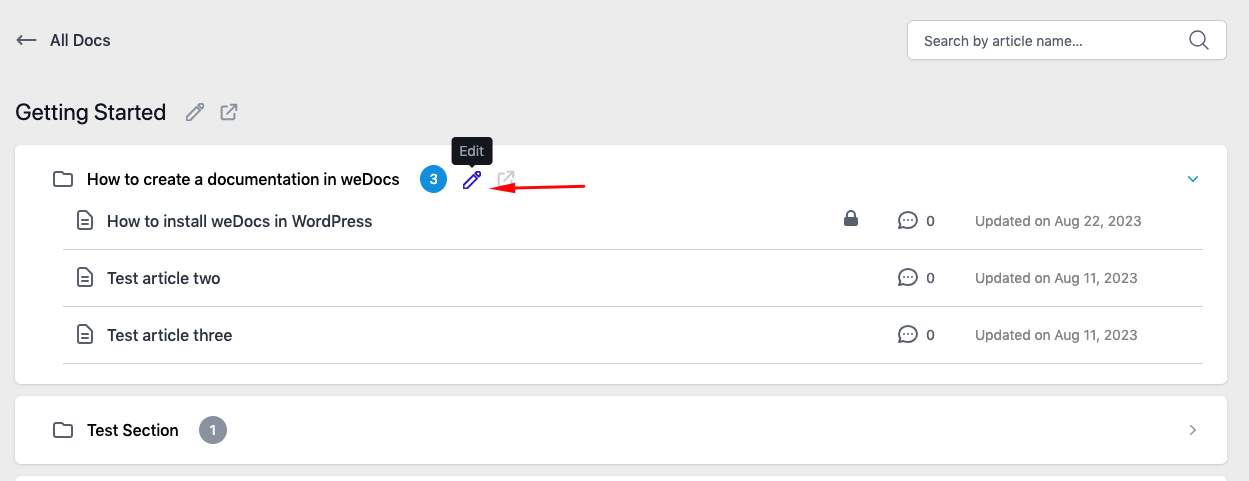
Now log in as an Editor. And you can see that s/he is getting edit access to the entire documentation!
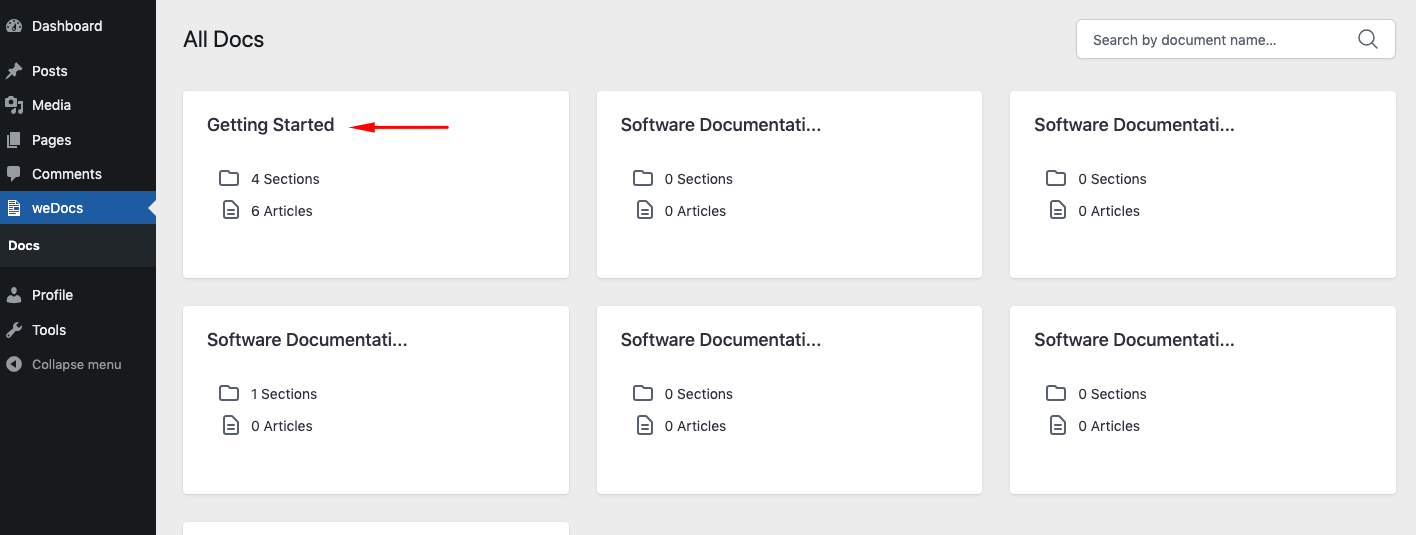
You can see the editing option is available. So this option works for all categories.
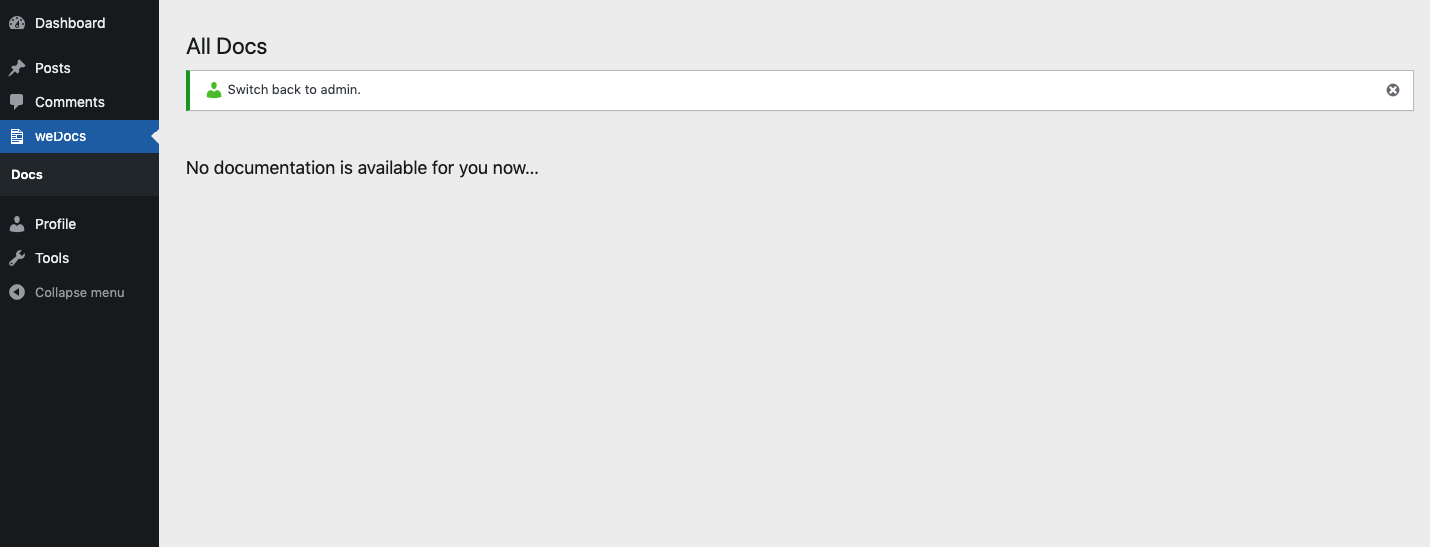
But other users, like Contributor, can’t see anything on the documentation page.
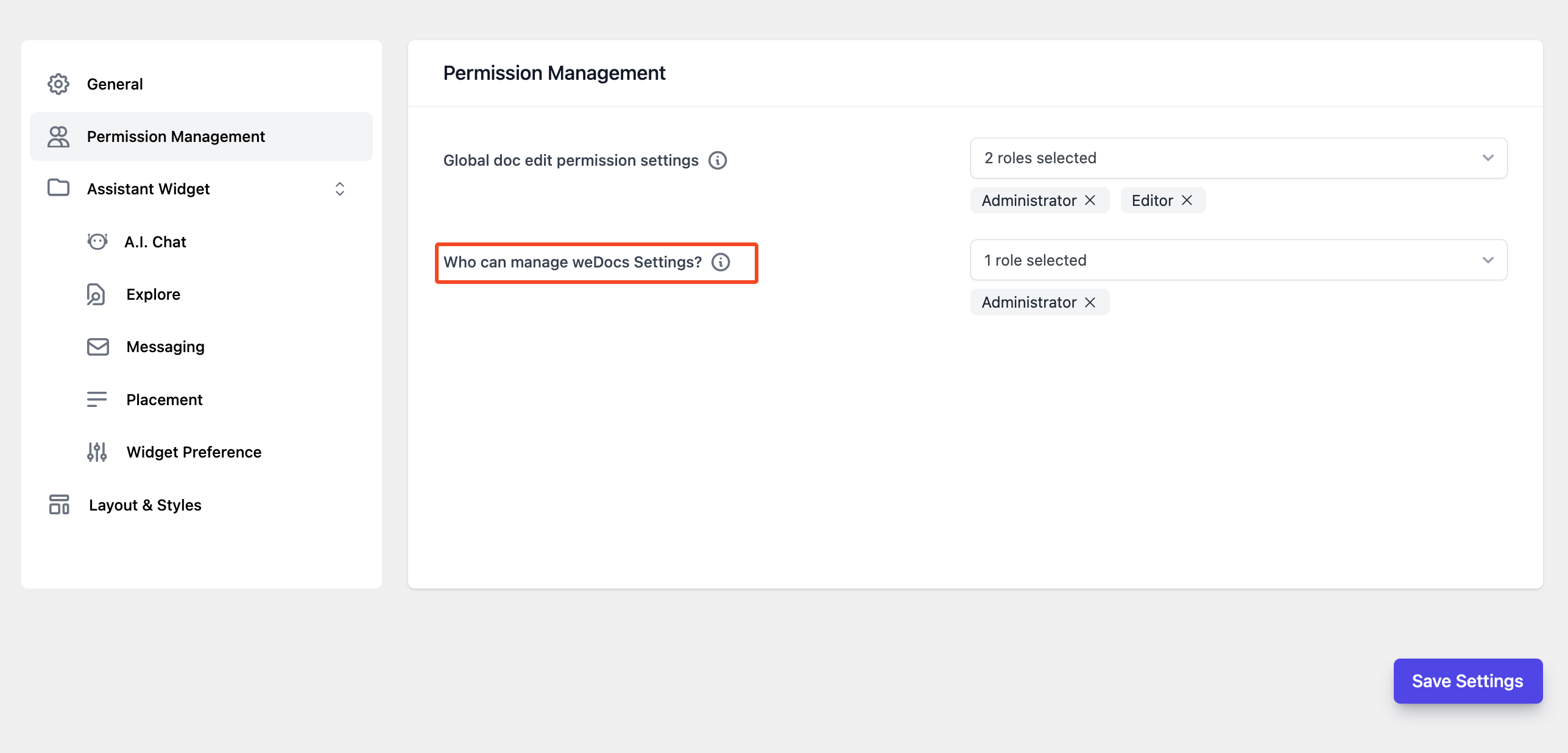
Like editing accessibility, you can also control who can edit WordPress document settings. With this option, you can easily do that.
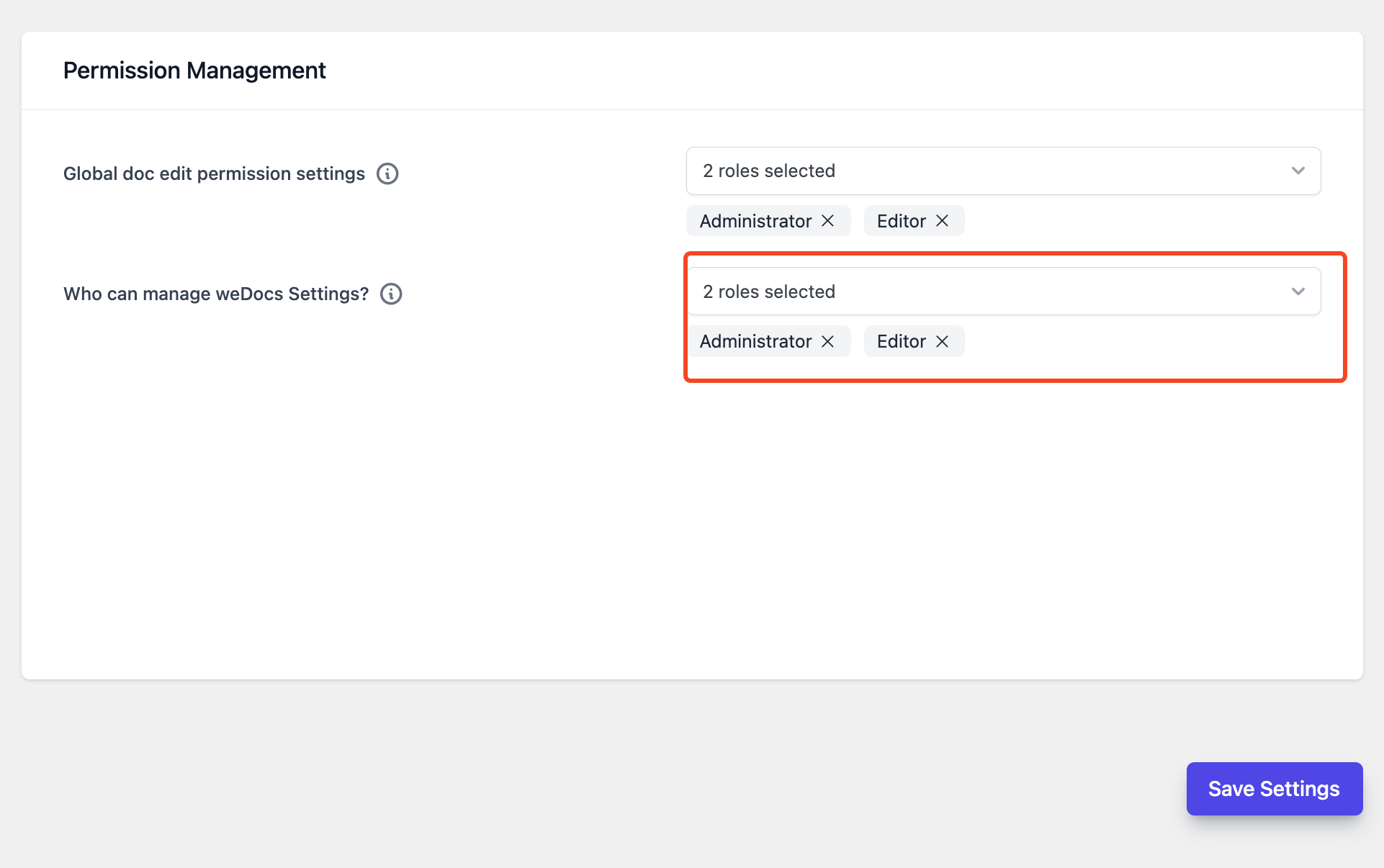
Suppose you want your editors and contributors to edit weDocs settings. In this case, you can select them here.
To see whether it’s working or not, log in as a subscriber.
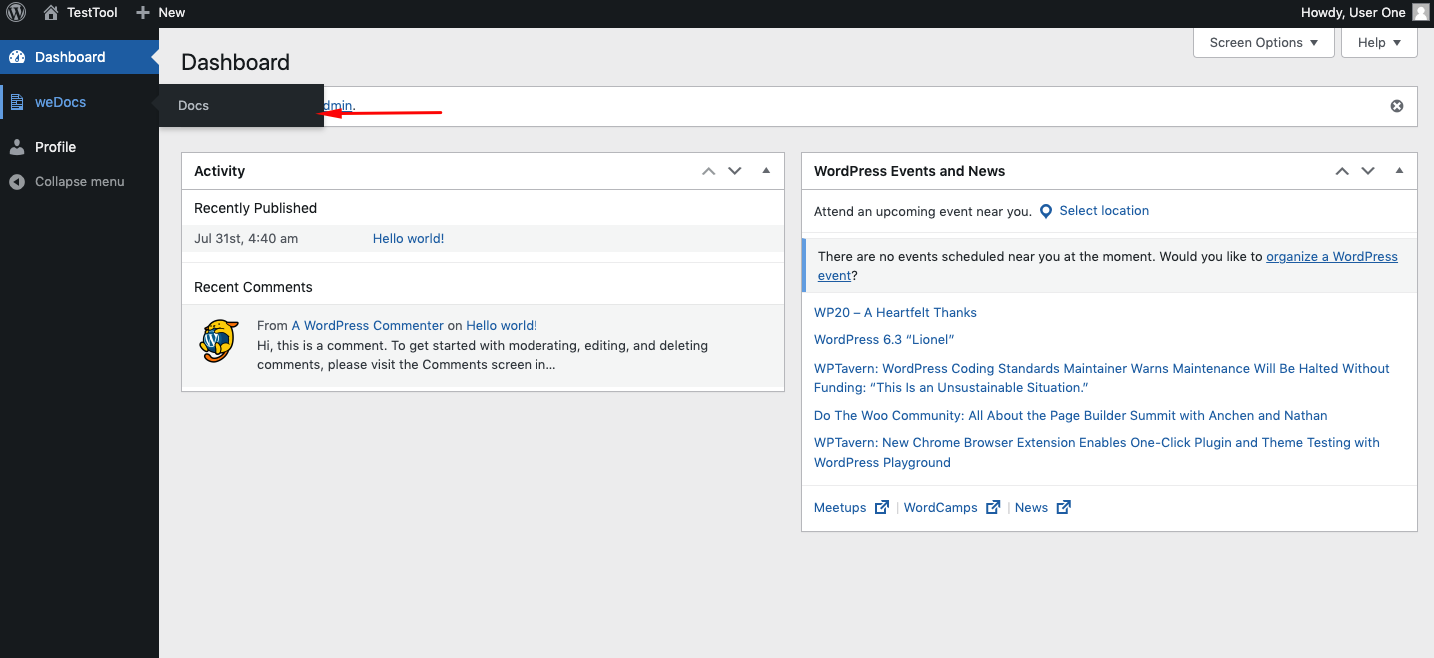
Now log in as a contributor or editor. You can see that the settings option is available and accessible.
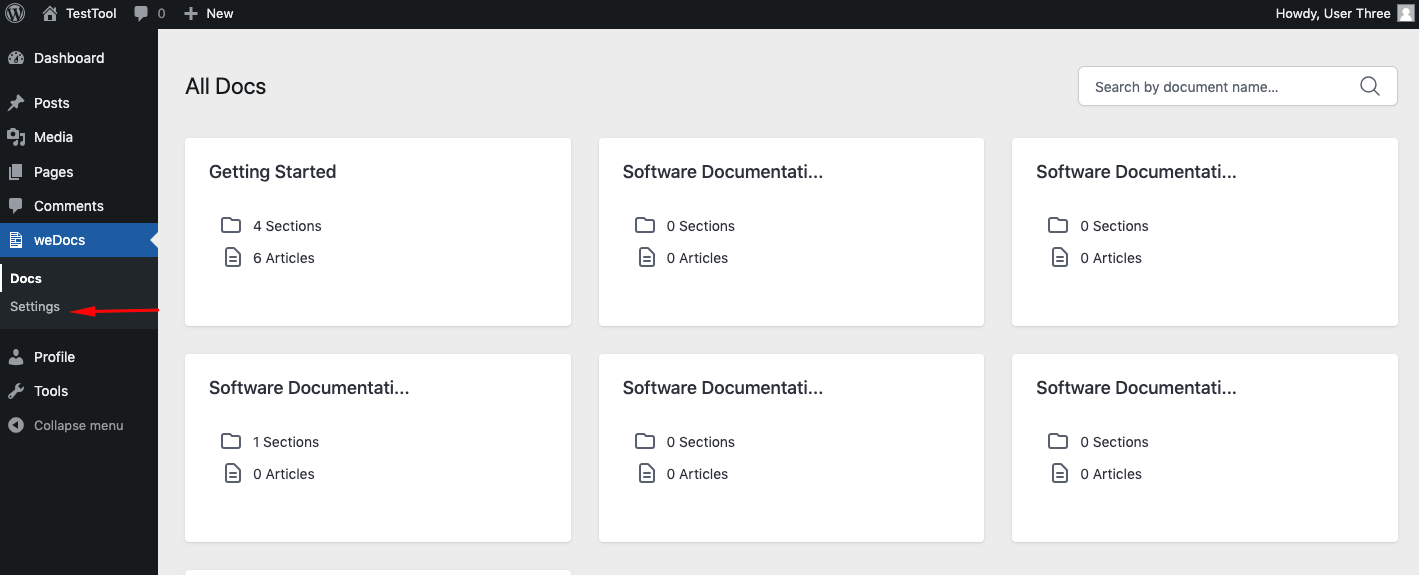
Under each document, you’ll see another permission management setting. By managing this, you can individually manage, control, and customize the permissions for your WordPress knowledge base plugin.
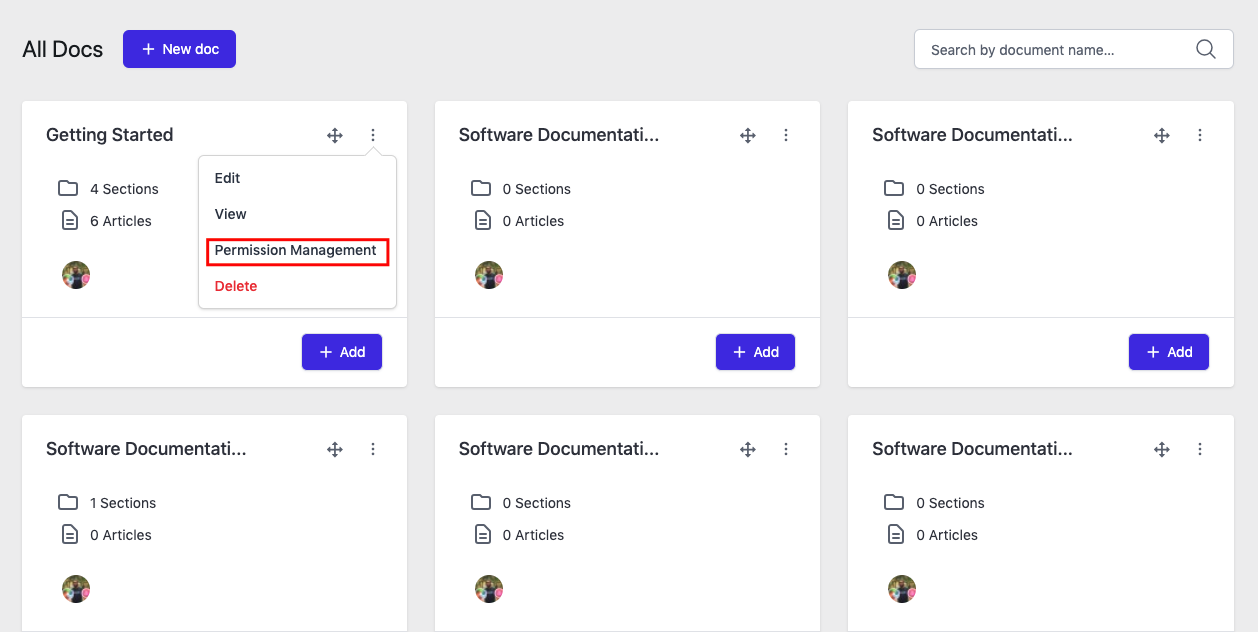
Click on it, and you’ll find two options:
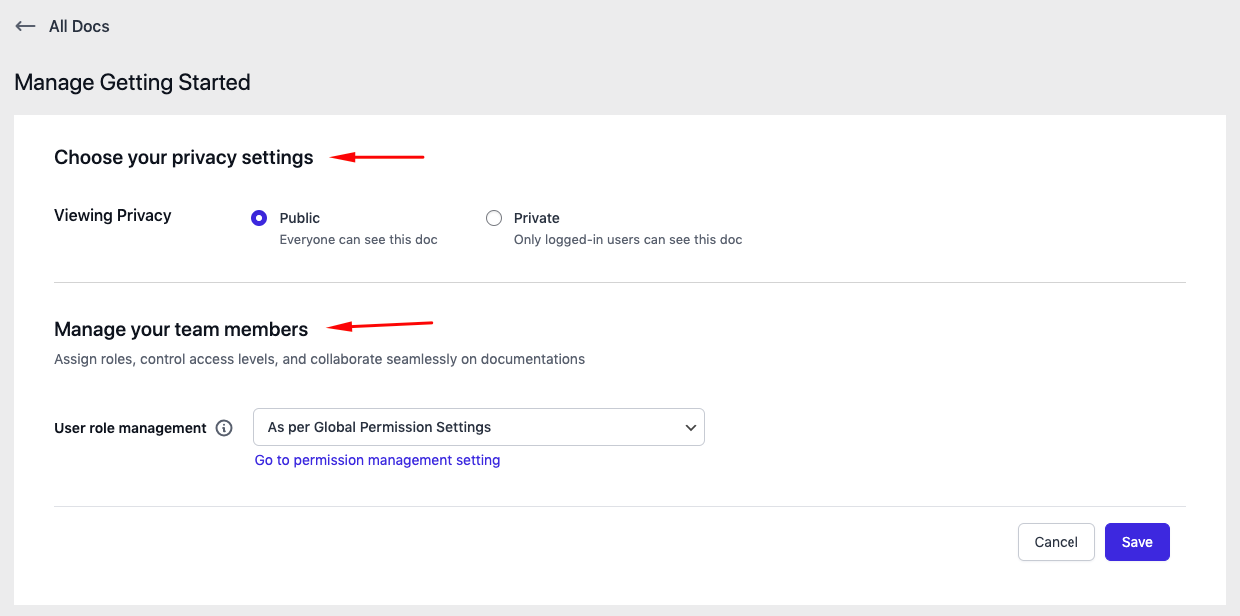
The current viewing option is set to “Public“. Now change this option to “Private.“. Then hit the save button!
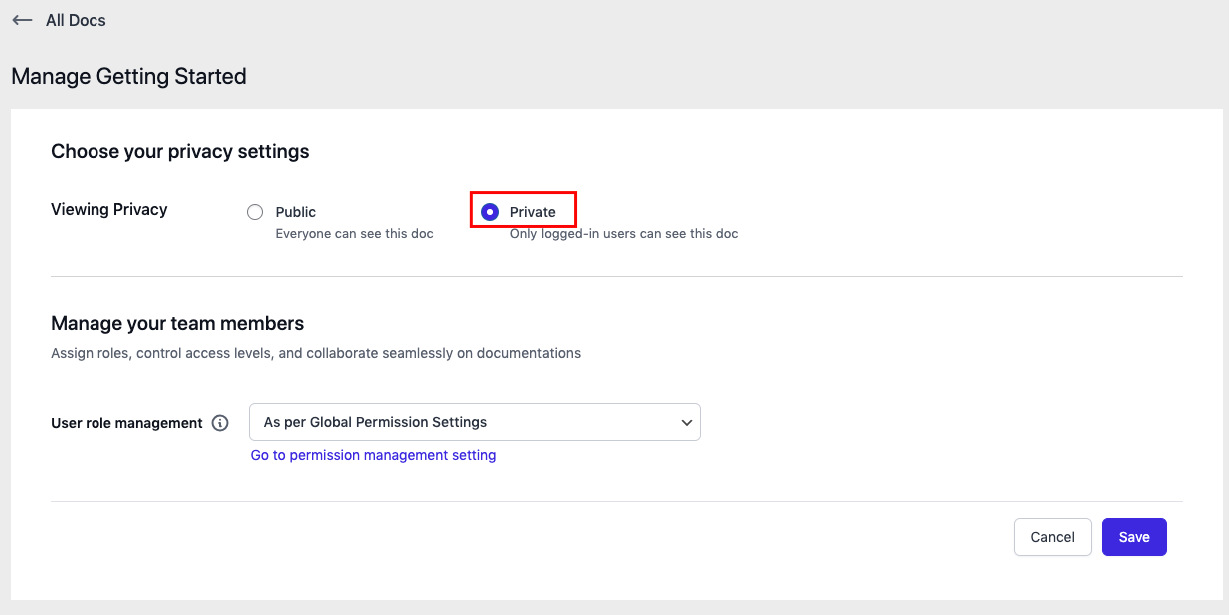
Now preview it from the front. As per the rule, “it will only be visible to logged-in users,” so visitors will not see this documentation.
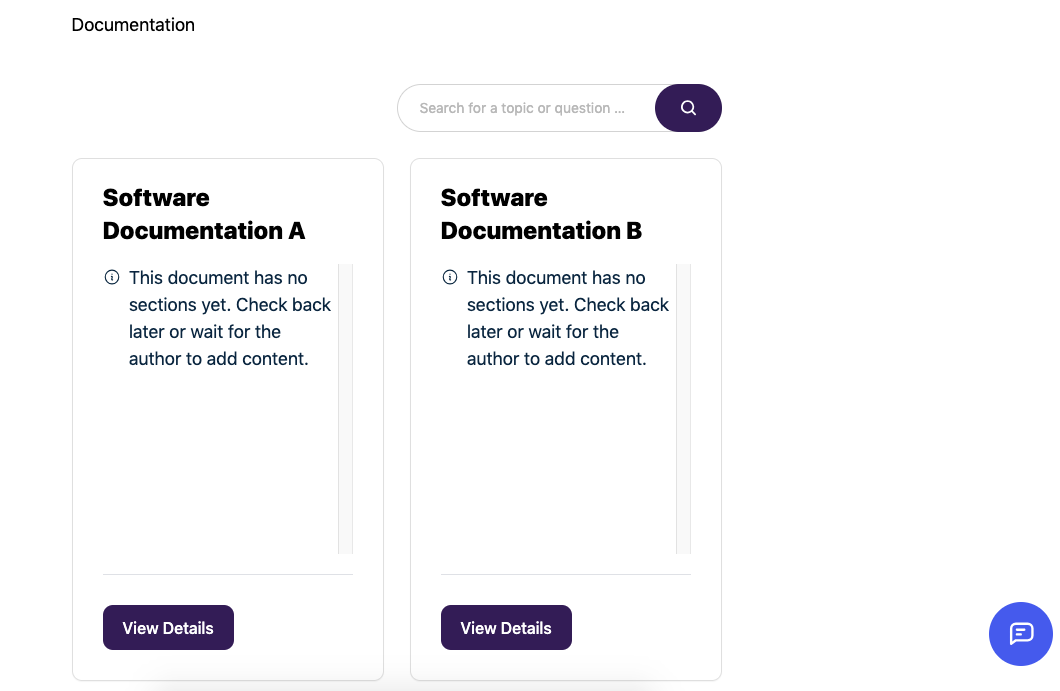
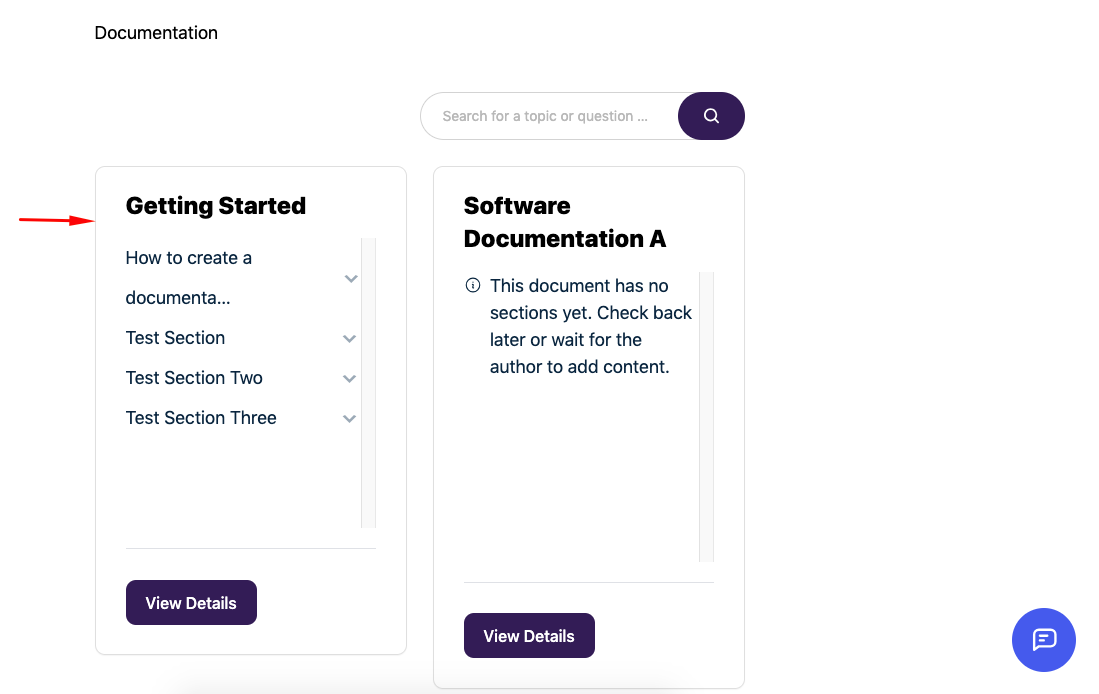
Now again, turn it to “public” and preview it.
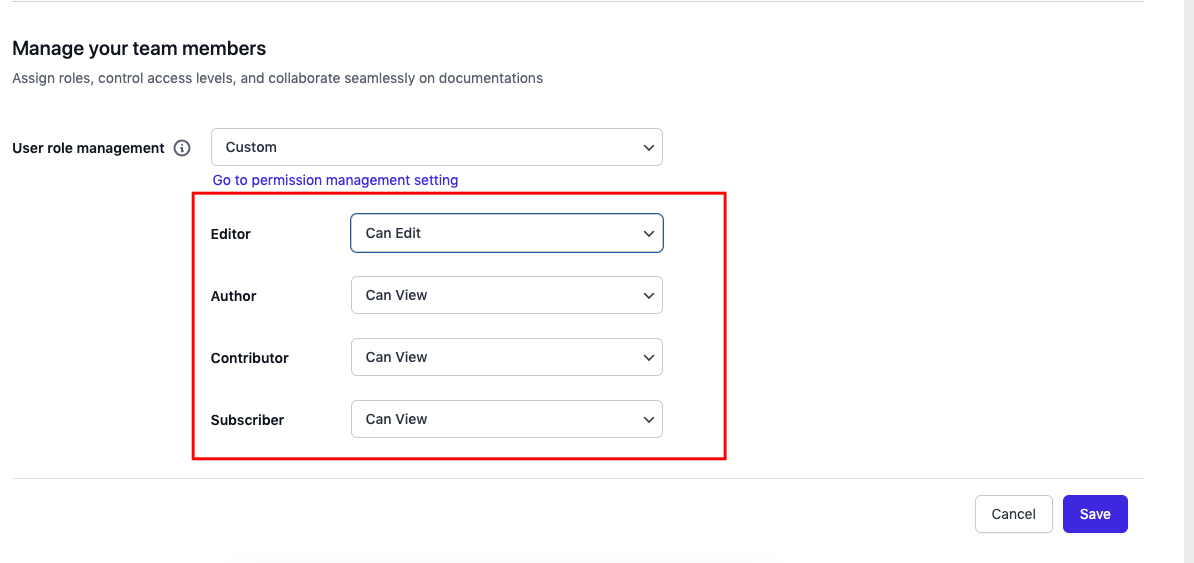
You can assign roles, control access levels, and collaborate seamlessly on documentation from here. You can stay with the Global settings, or you can set a custom setting.
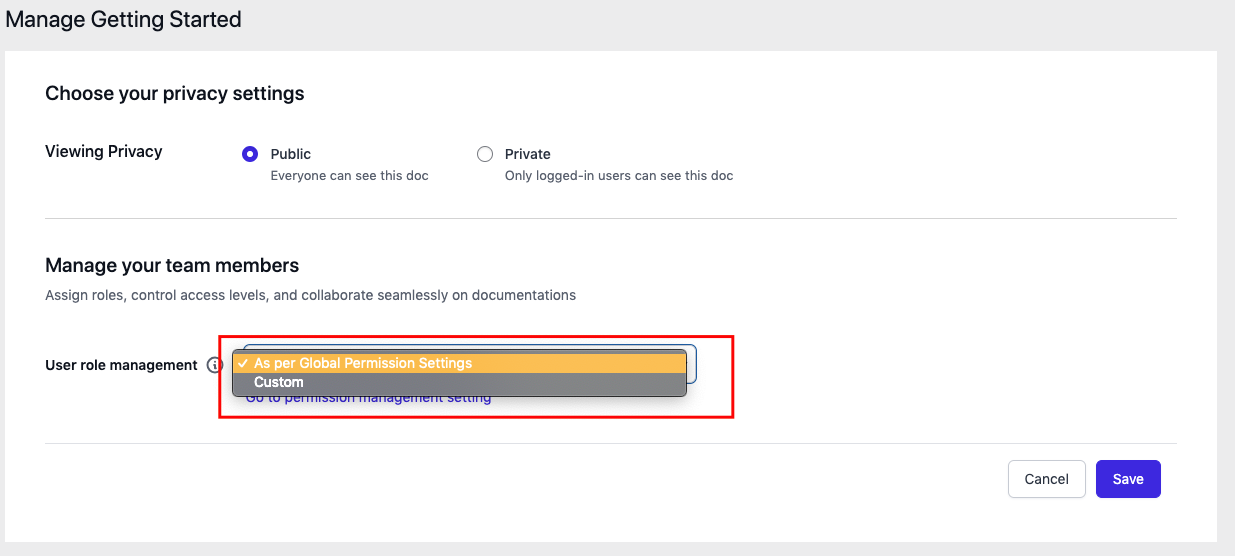
Choose the custom settings. And set the user role!
As you can see, only the editor has editing capability on this documentation. Don’t forget to hit the save button after you make any changes.
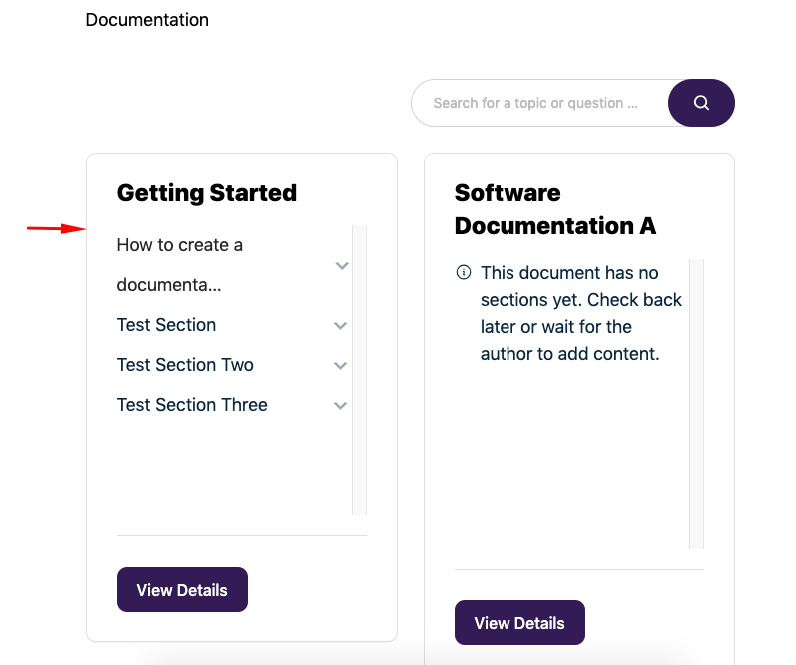
View the documentation from the front. Click on the documentation.
Click on the “edit documentation” button.
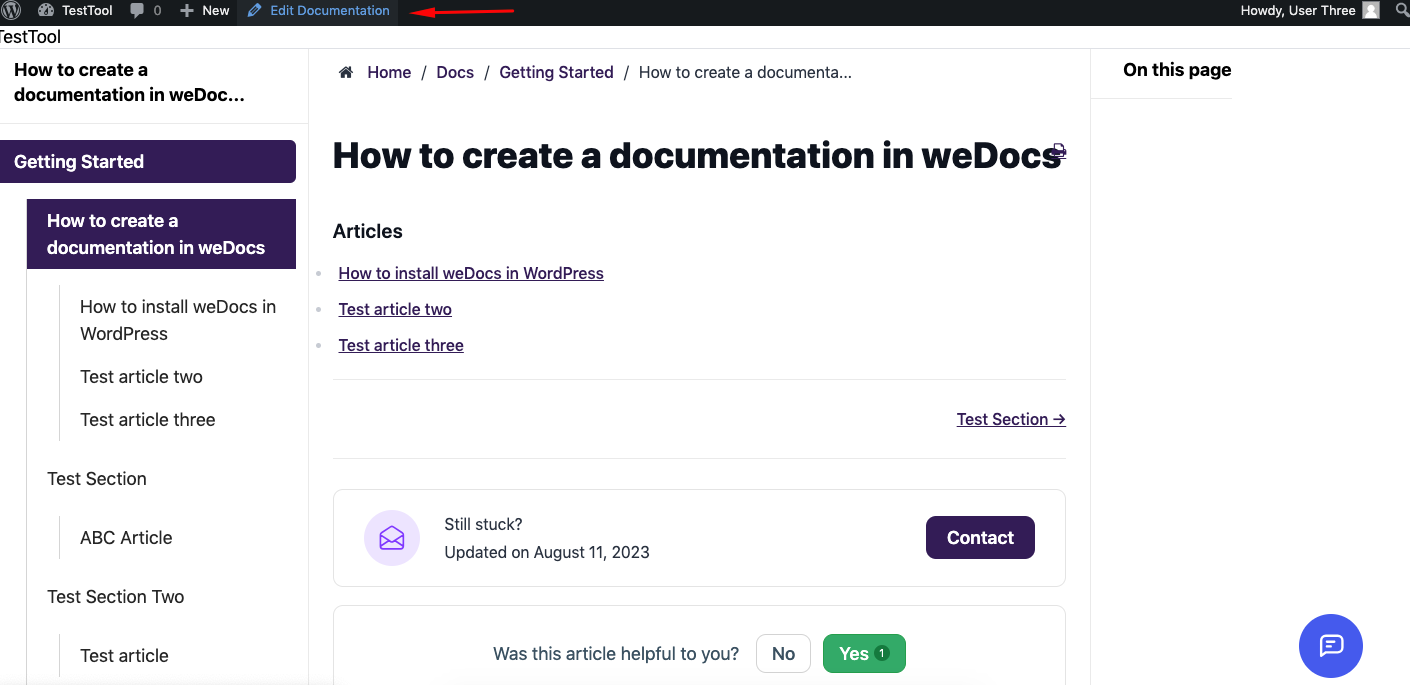
Here you go. Now you can see that the editing option is available.
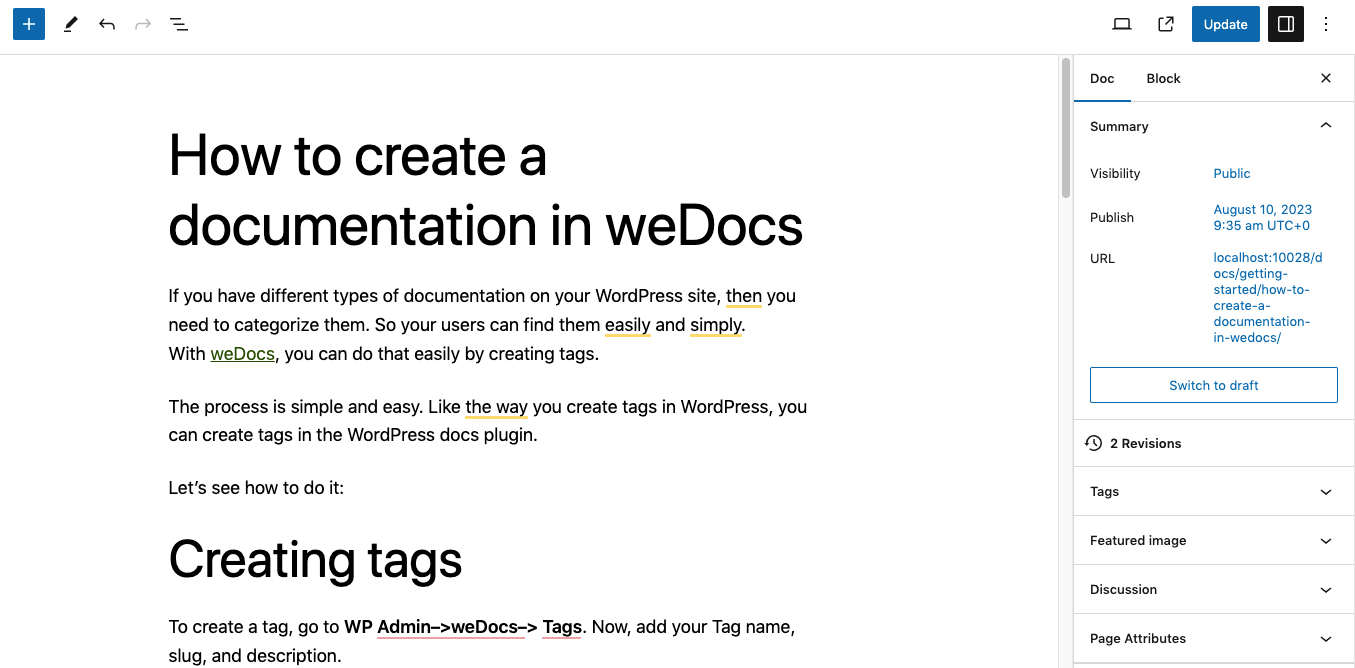
Now let’s see how other users see the editing option. Log in as a contributor and follow the same process!
Oops! You’ll get this message!
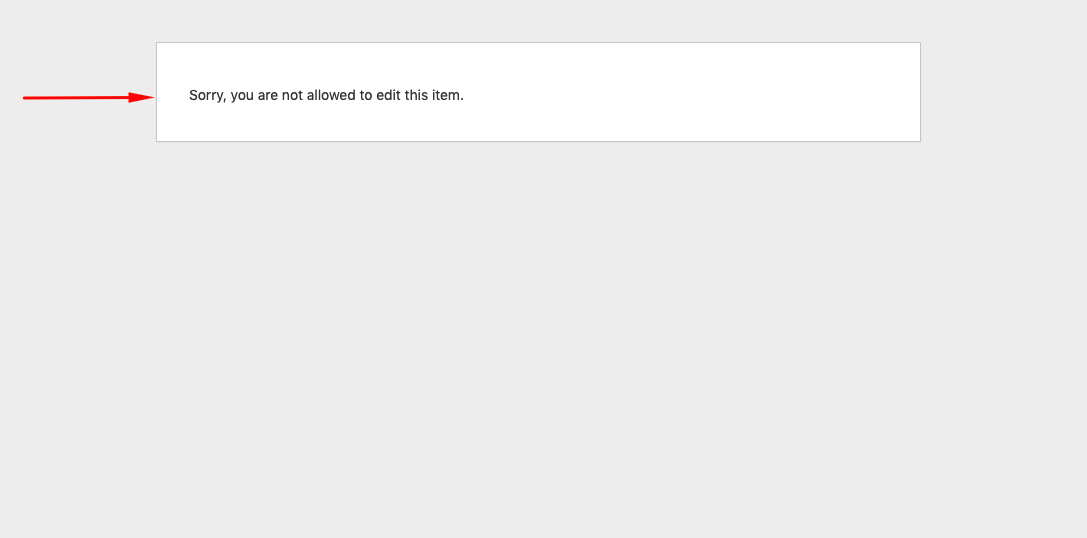
So this is how you can set up your users and manage who can access your preferred documentation or not!
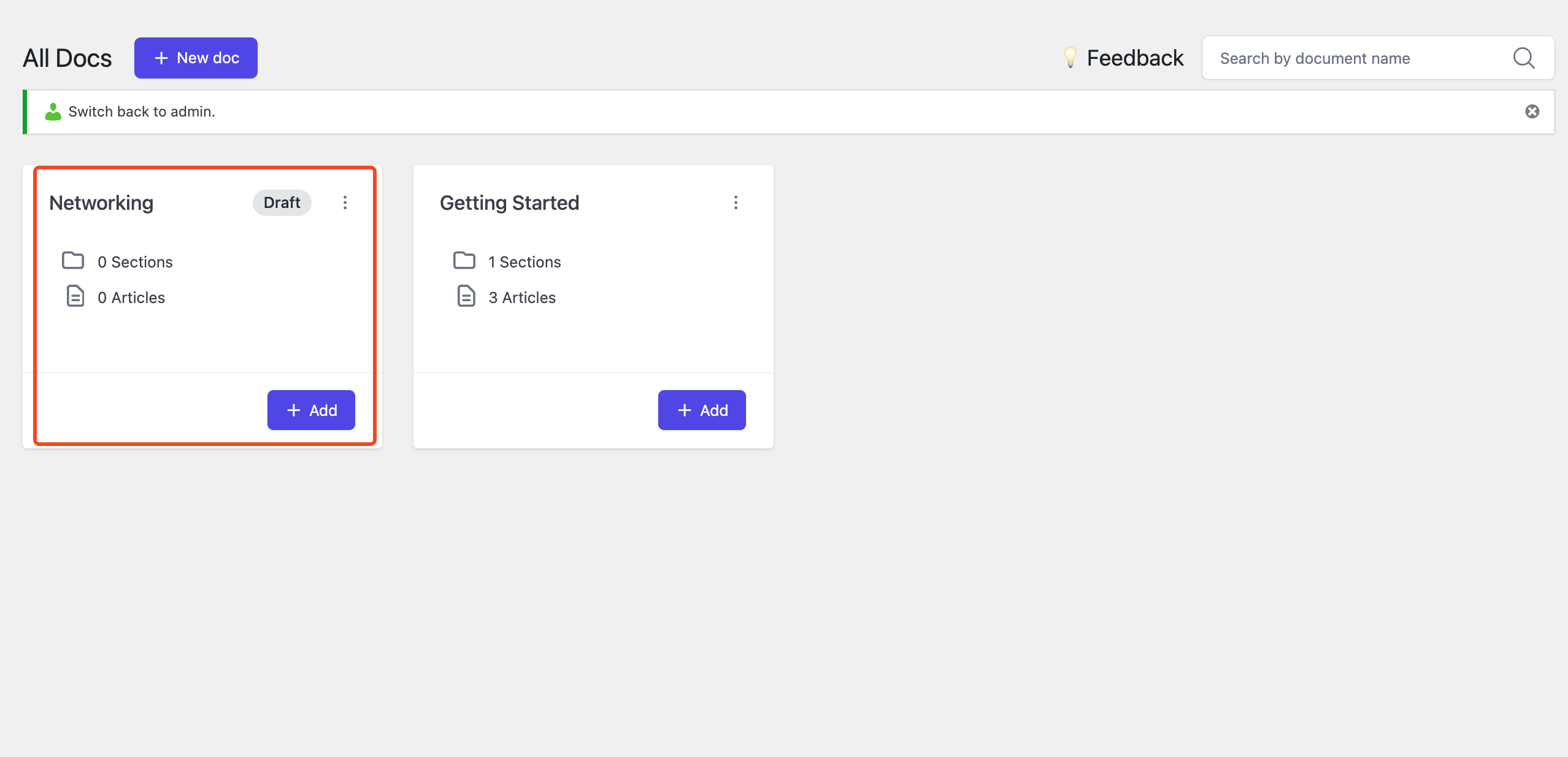
Navigate to the weDocs documentation page and choose a drafted parent document.
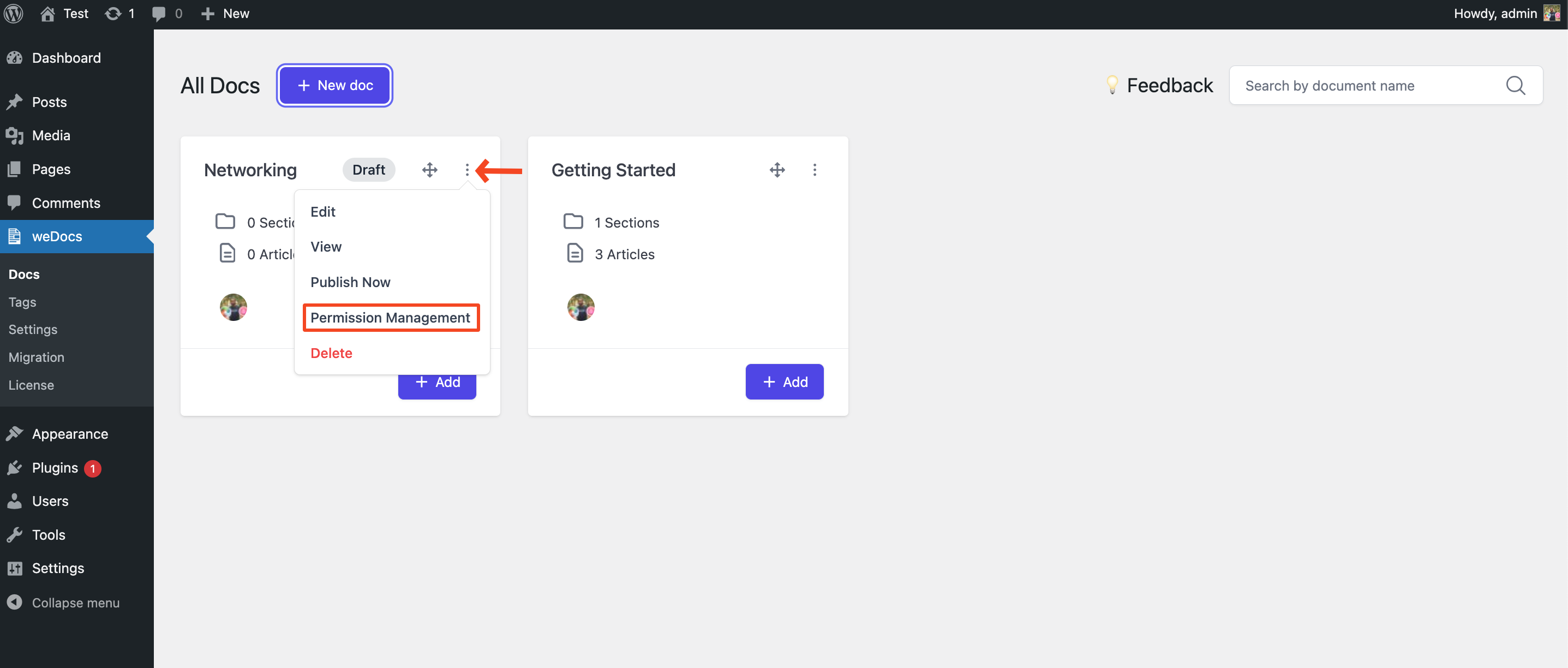
Here on the WordPress Dashboard > weDocs. Choose the drafted parent documentation.
To do that, tap on the three-dotted icon on the top-right corner. This will open a list with different options. Click on the option Permission Management.
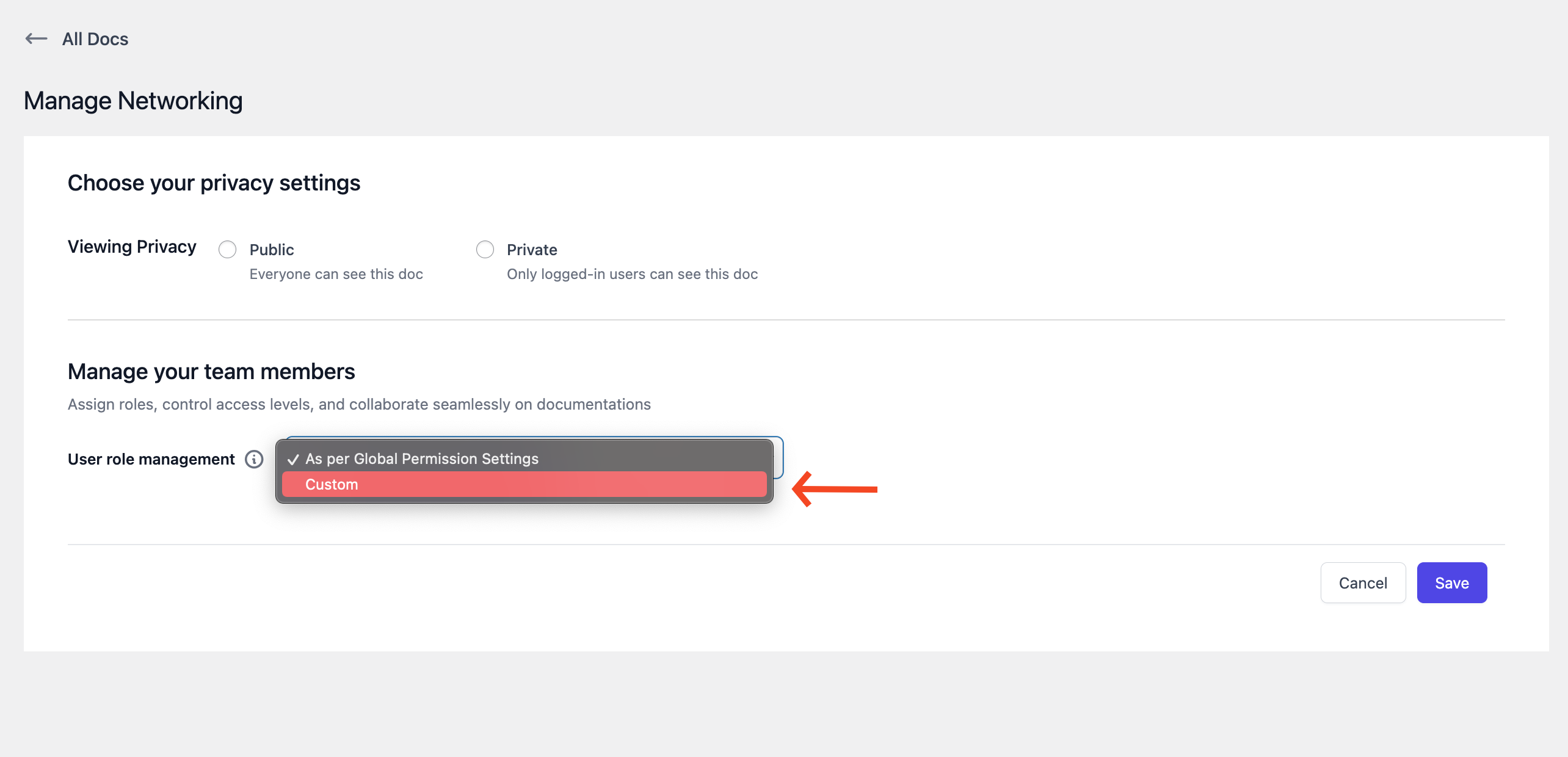
Here on the permission management page, you’ll get a drop-down box next to the option. Select the Custom option from the drop-down list.
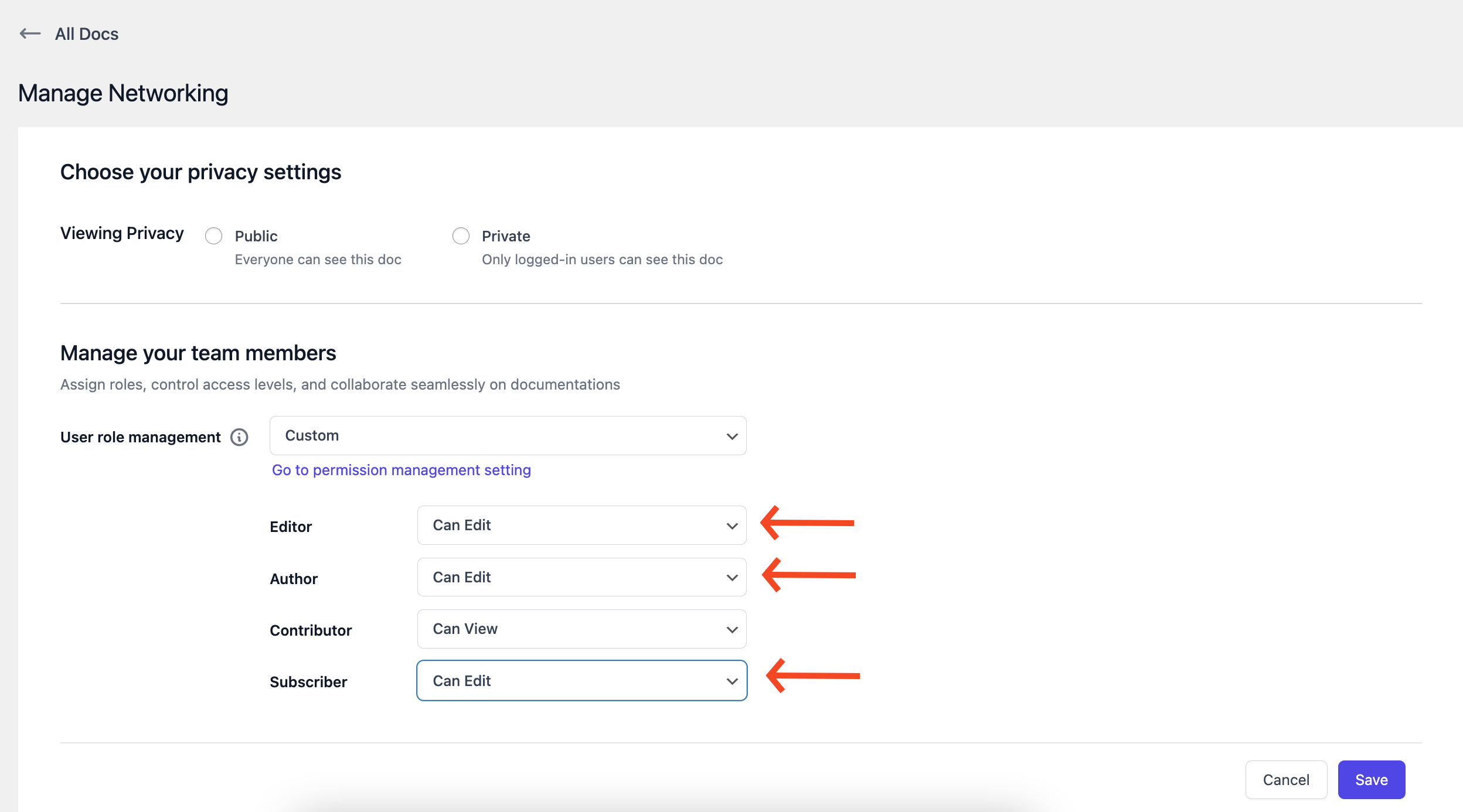
You will see users appearing on the screen. Now, set respective roles for them. Hit the save button at the end.
Once you have entered the documentation page as the above user, you can see and access the documentation file.
Thus, you can customize the user-based role management of weDocs.
Last updated on
Filed under Permission management
Our support team can walk you through it.