


How to use Assistant Widget WordPress documentation
- weDocs Pro
- Updated Apr 2, 2026
- 3 min read

Here in this documentation, we’ll guide you through how to use and customize the assistant widget for your WordPress documentation using weDocs.
weDocs assistant widget has three major parts:
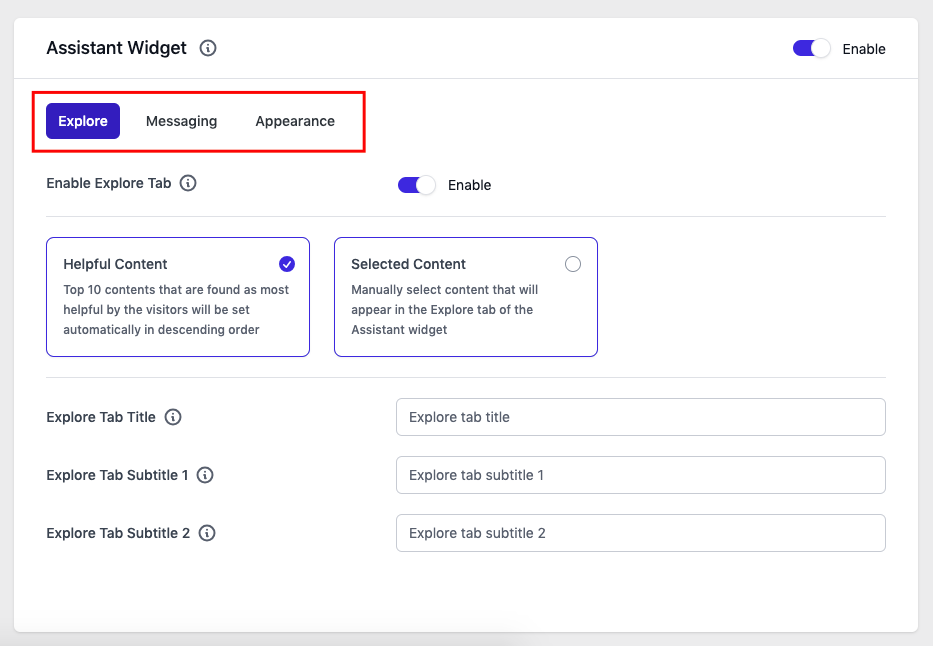
Let’s check out them one by one!
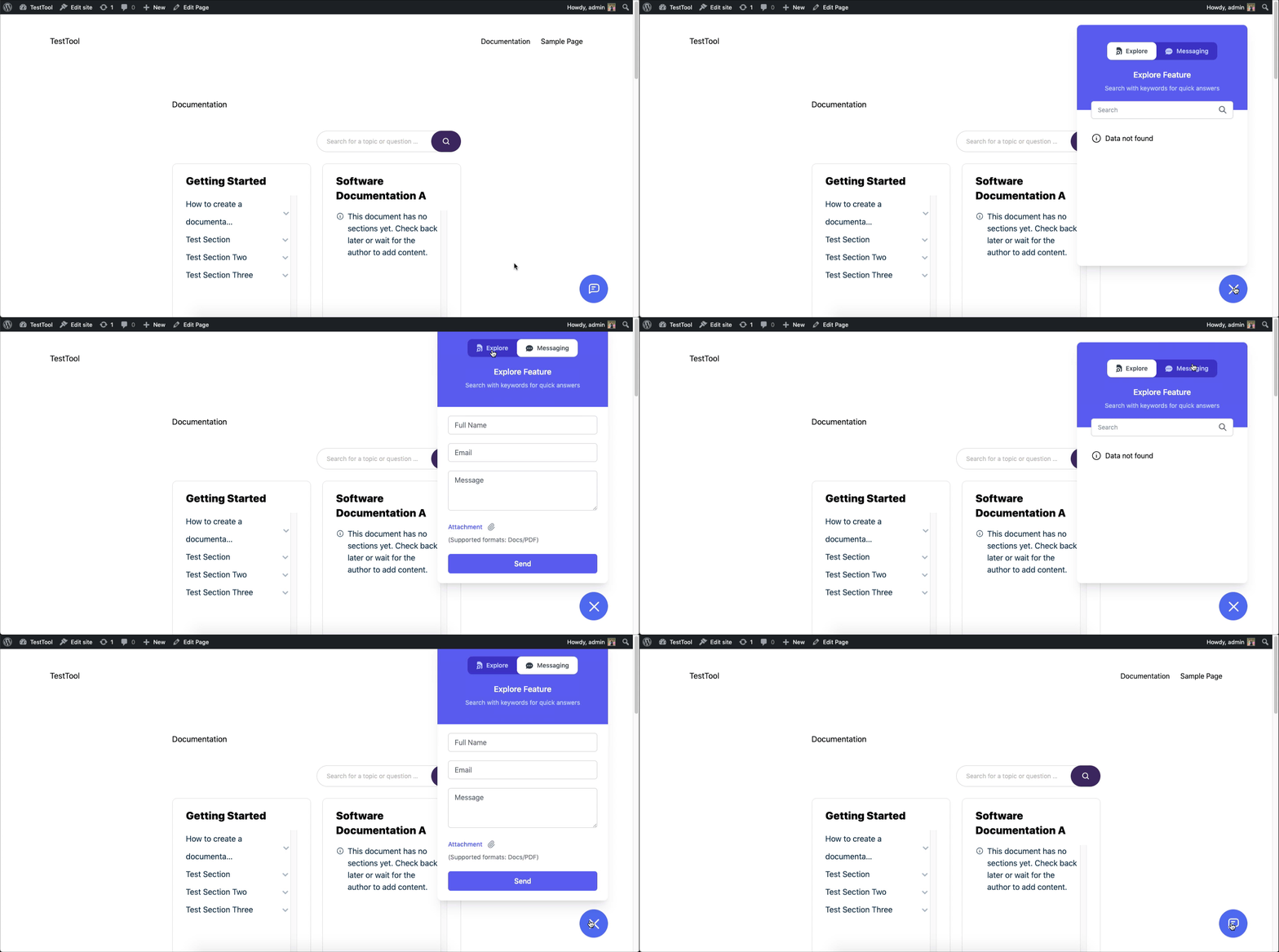
Here’s the front overview of the assistant widget!
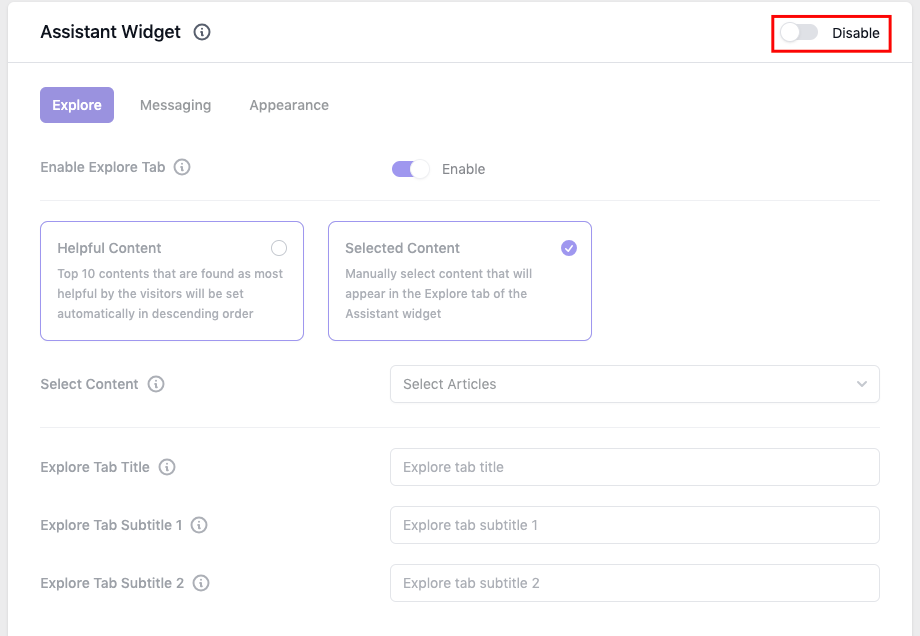
You can activate or deactivate the assistant widget right from here. Just enable or disable the button. It will not appear on your documentation site. But don’t forget to hit the save button after changing any option!
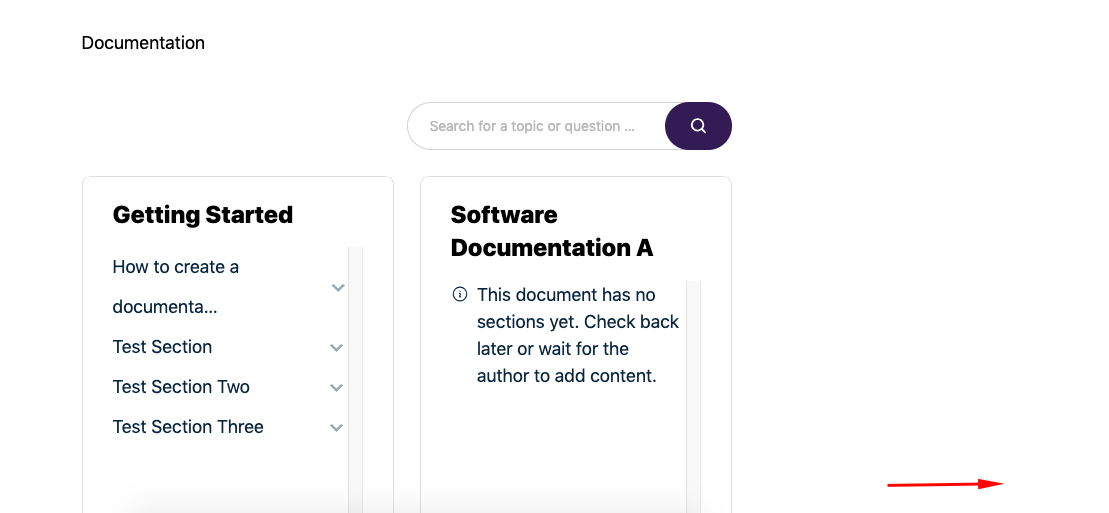
Here’s the frontend overview of the assistant widget after deactivating it. See it’s appearing here!
Also, you can individually turn off each section. Here we have disabled the “explore.” tab.
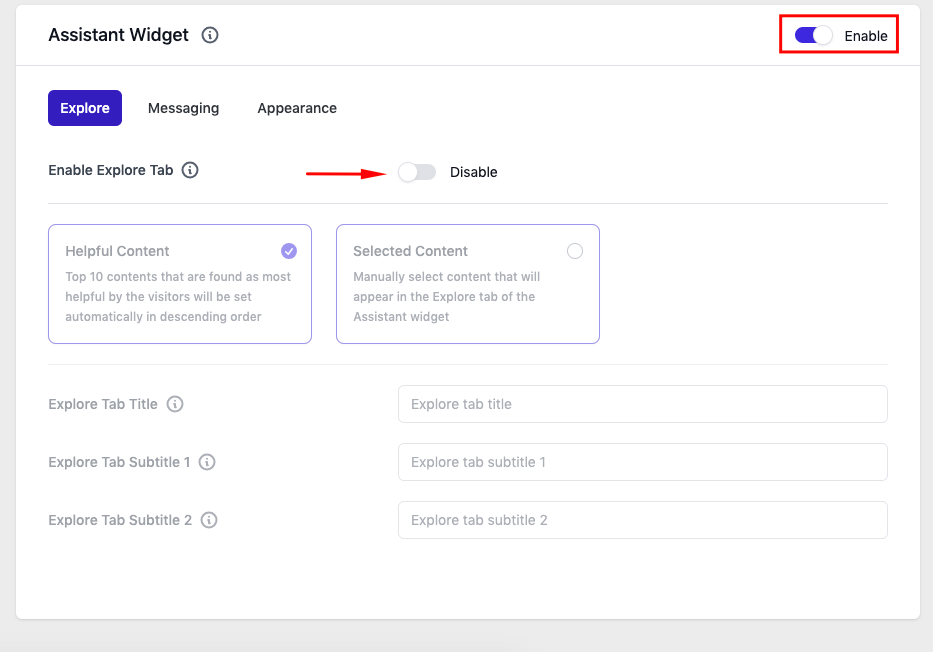
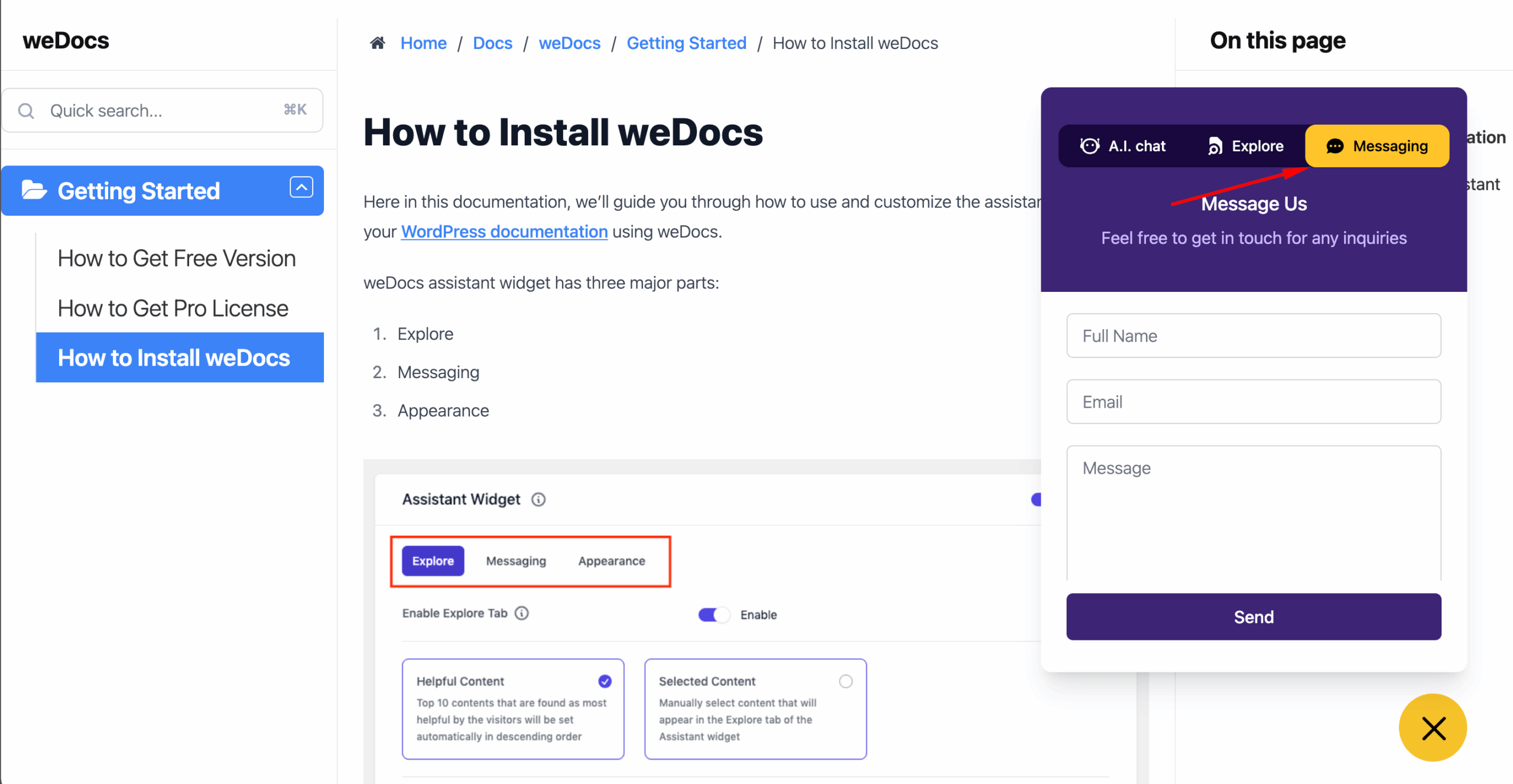
Now let’s see how it will appear on site. Here you can see the “explore” tab is not appearing.
On the upper section of the “explore tab” settings, you’ll find two options.
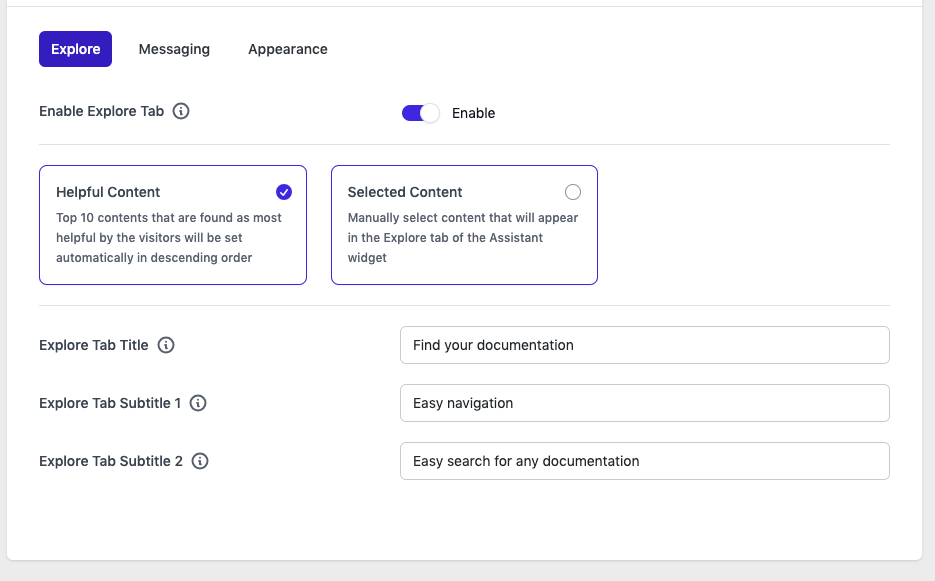
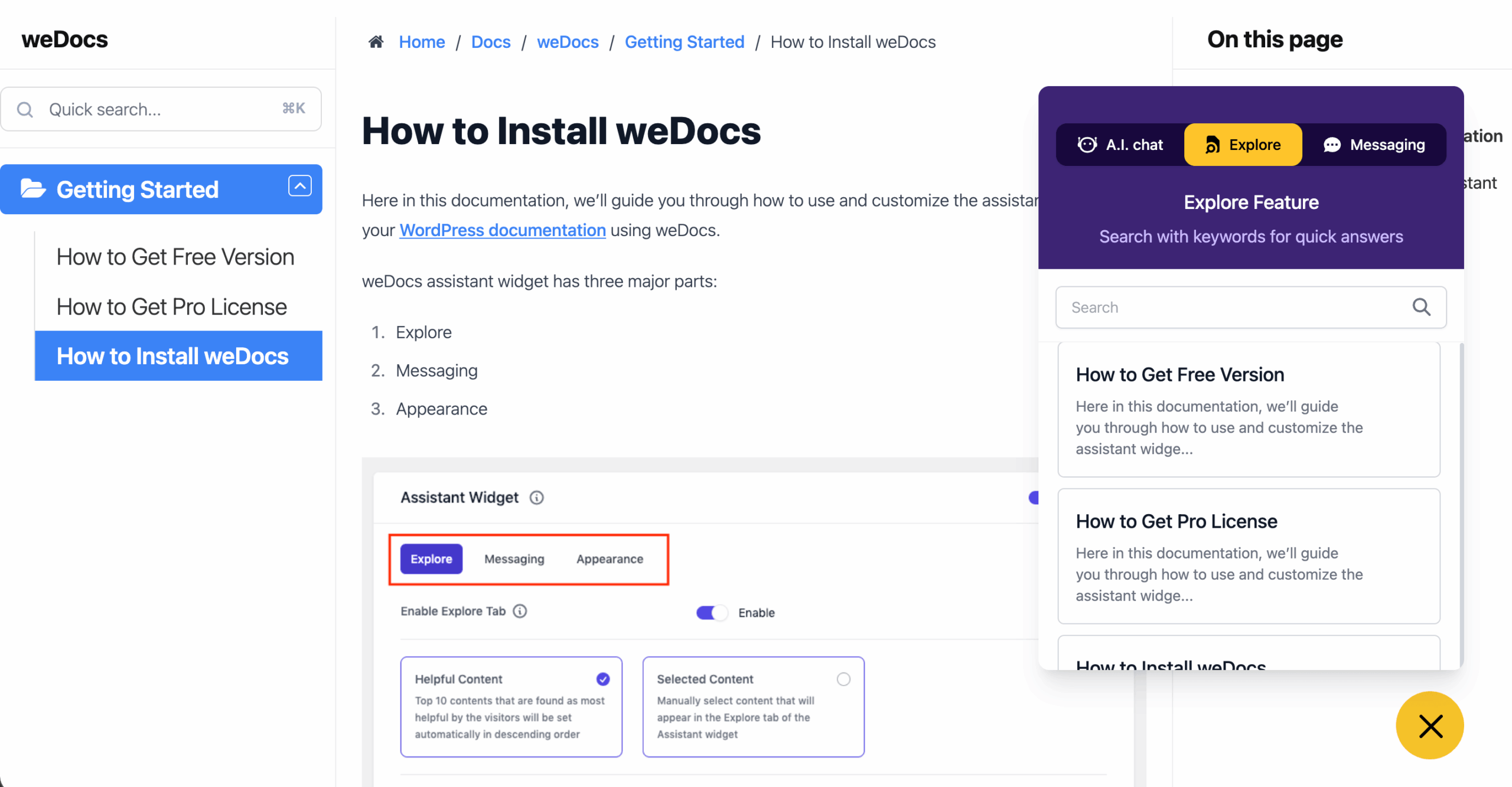
Let’s see if you enable the first option. Don’t forget to save things once you’re done.
You can see the details in the “Explore Tab“. Also, you can see the documentation selected or liked by the users.
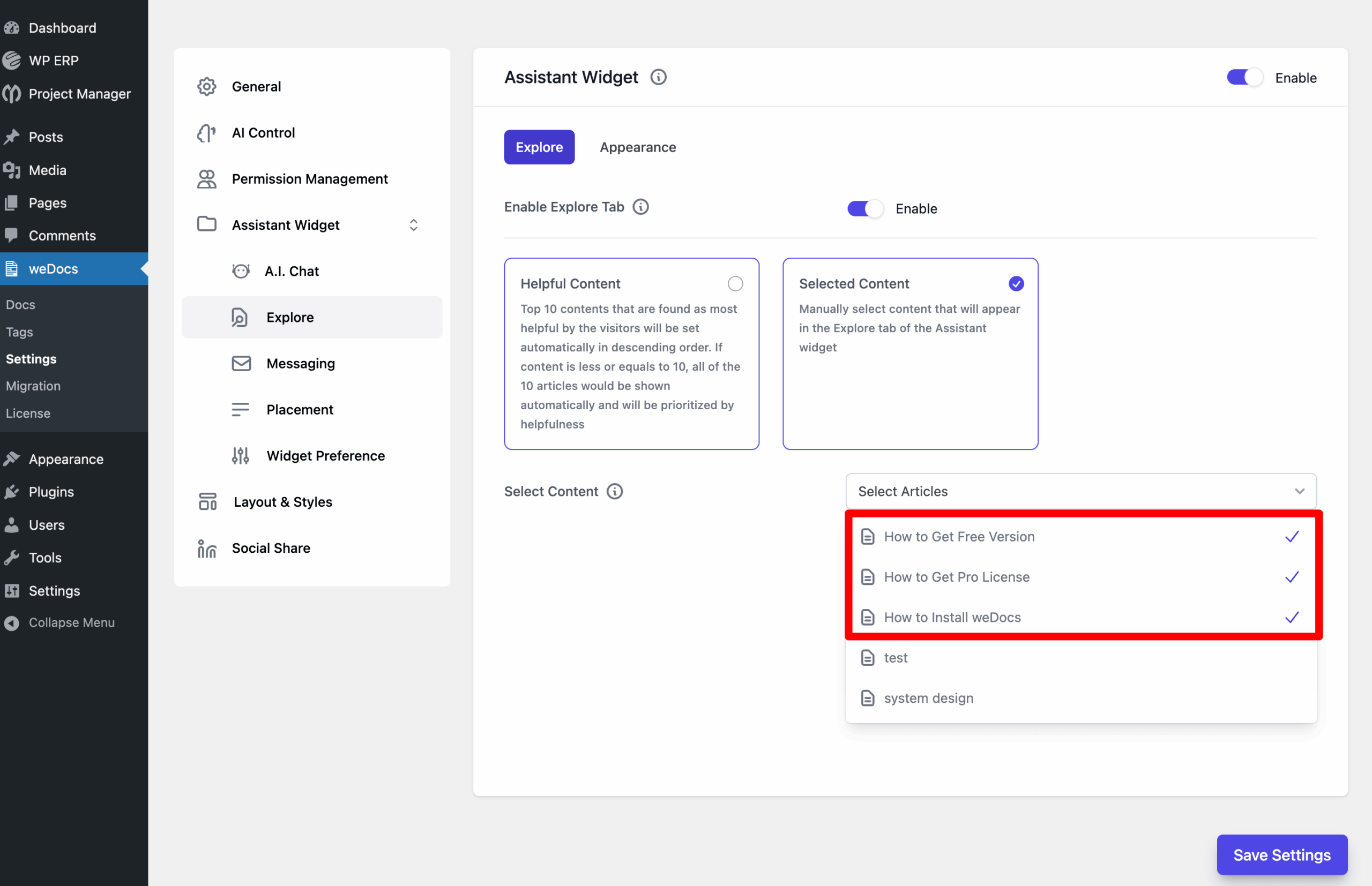
Now enable the second option and choose your preferred documentation from the settings. Then hit the save button.
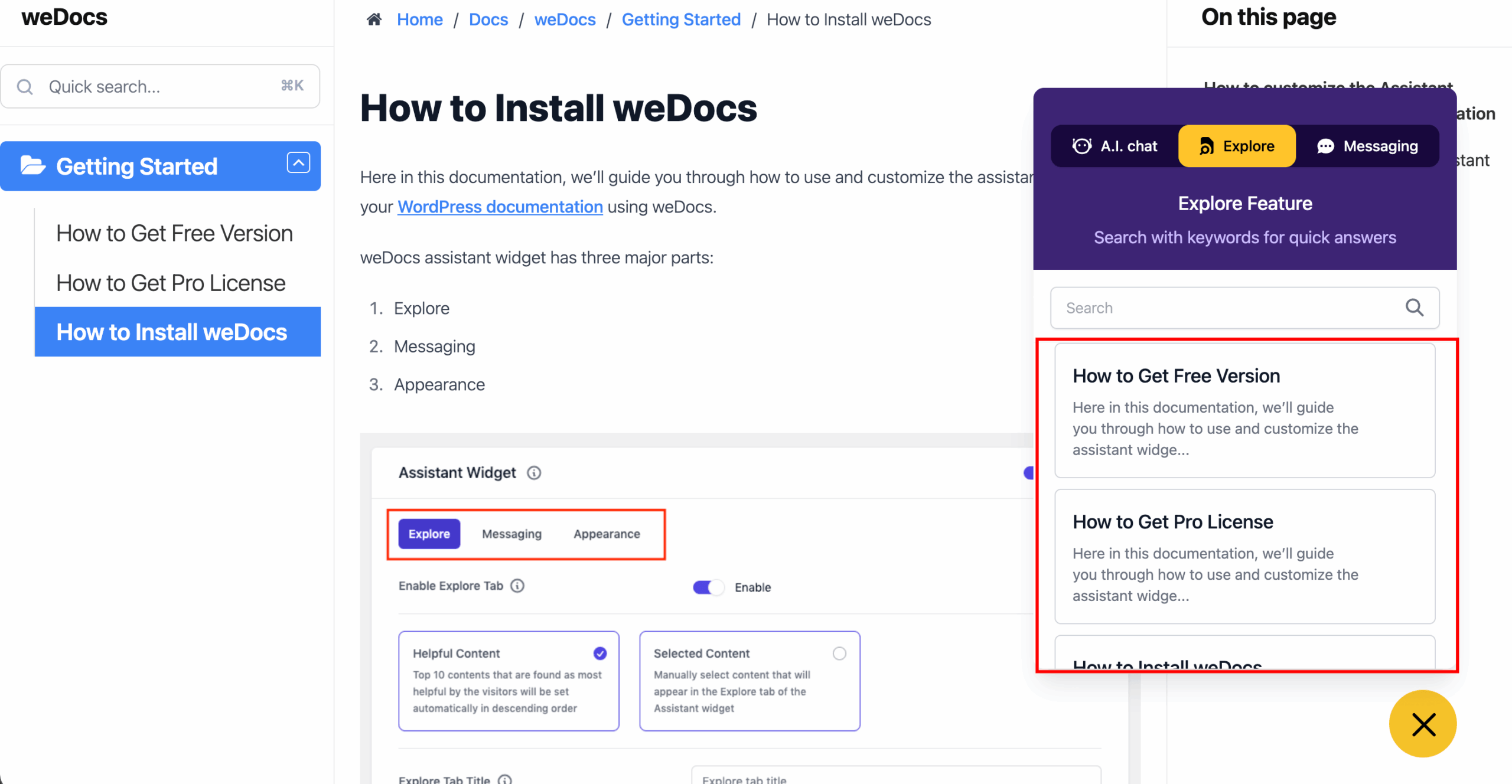
If you preview it, you can see the selected content displayed on the “Explore Tab“.
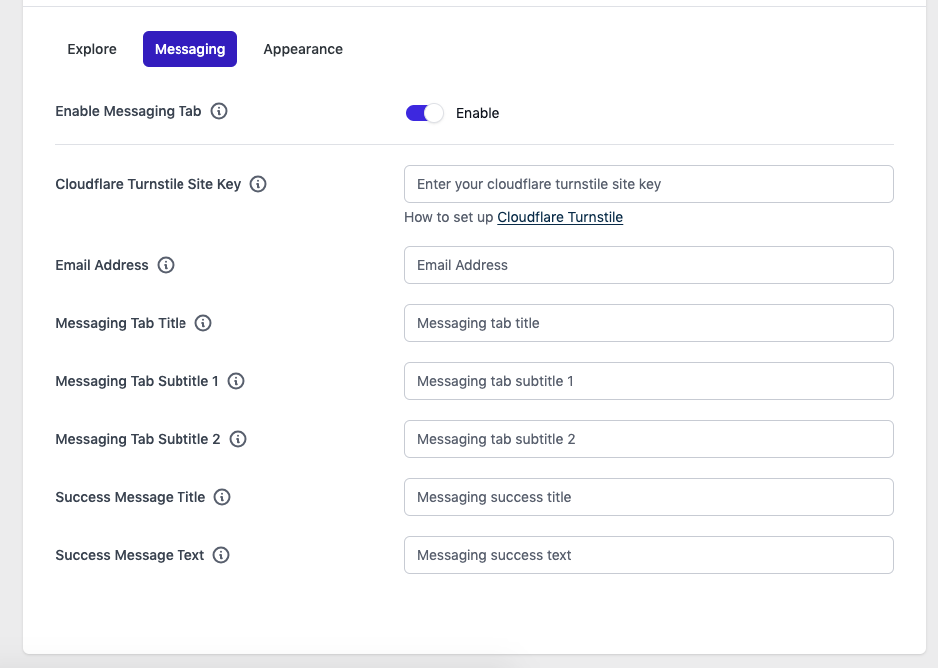
Let’s now customize the Messaging tab like the “Explore Tab“. Tap on it, and you’ll get the options!
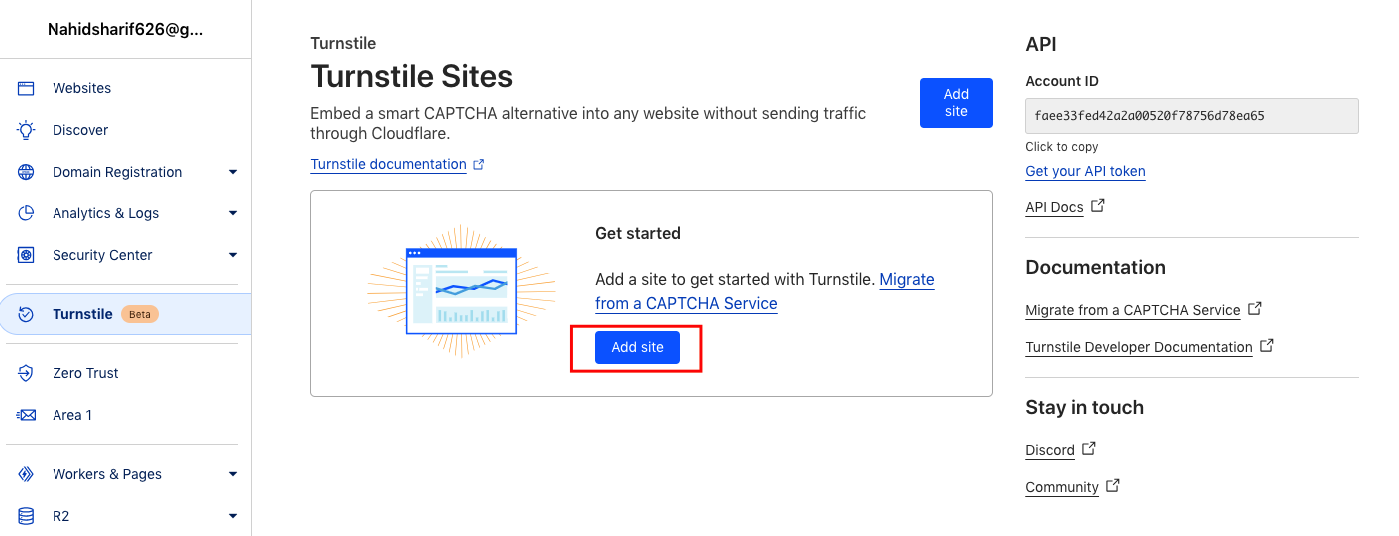
Now visit this link to set up your Turnstile account keys. Once you enter the account, you’ll need to add your site here.
Once you’re done, you’ll get site keys. Just enter here!
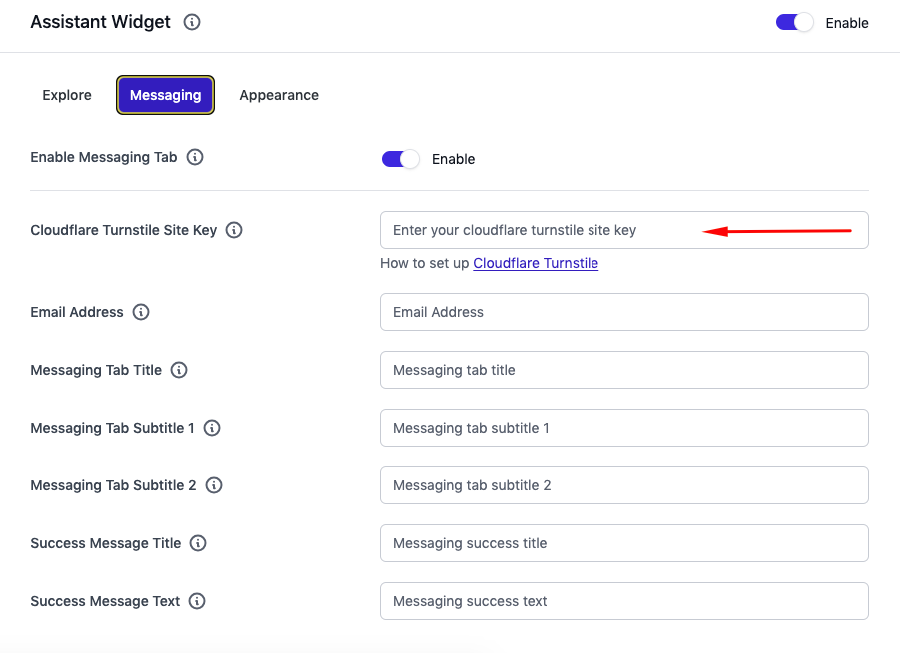
If you preview it on your website, you can see the messaging option. Now add your name, email, and message. After that, hit the send button.
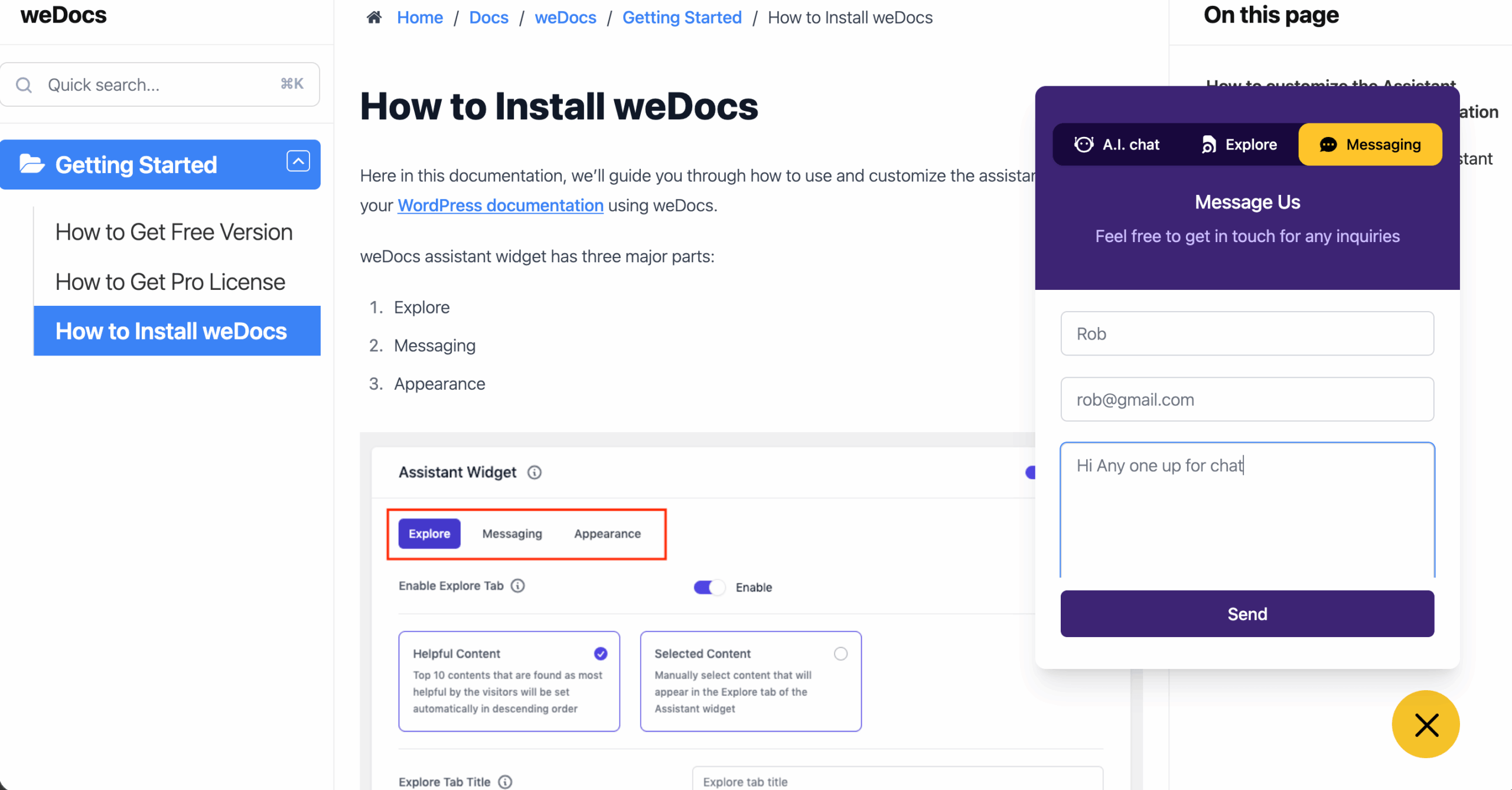
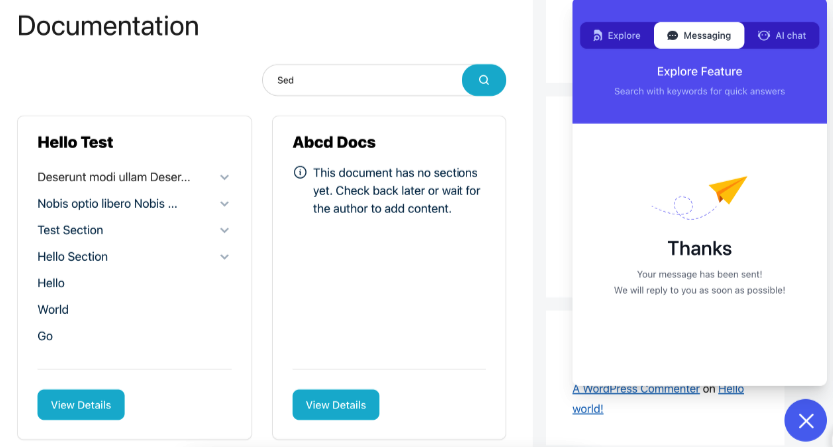
So now your users are ready to send messages!
Tap on “Appearance,” and you can see all the available customizing options.
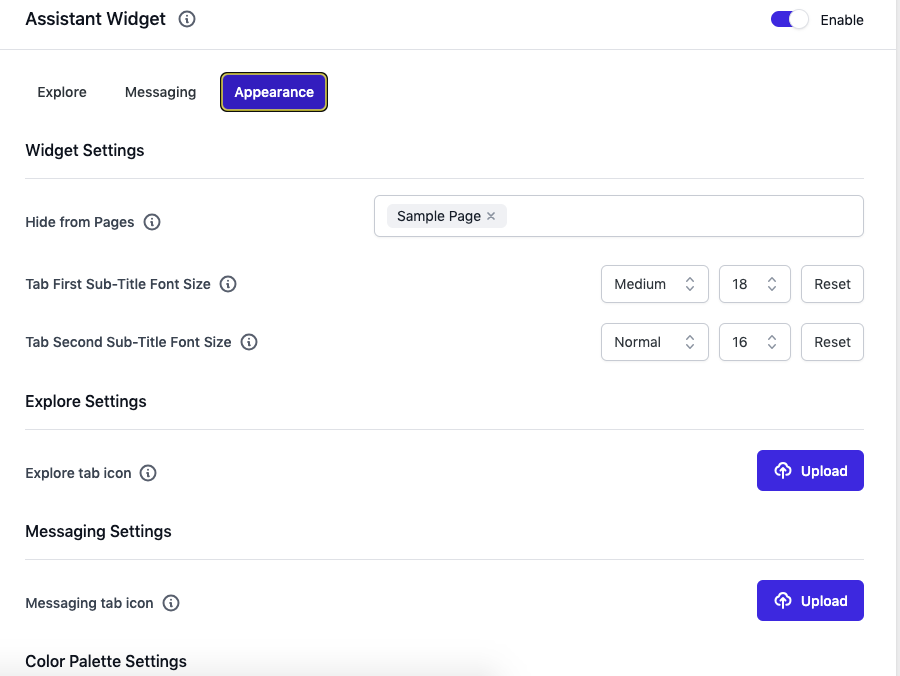
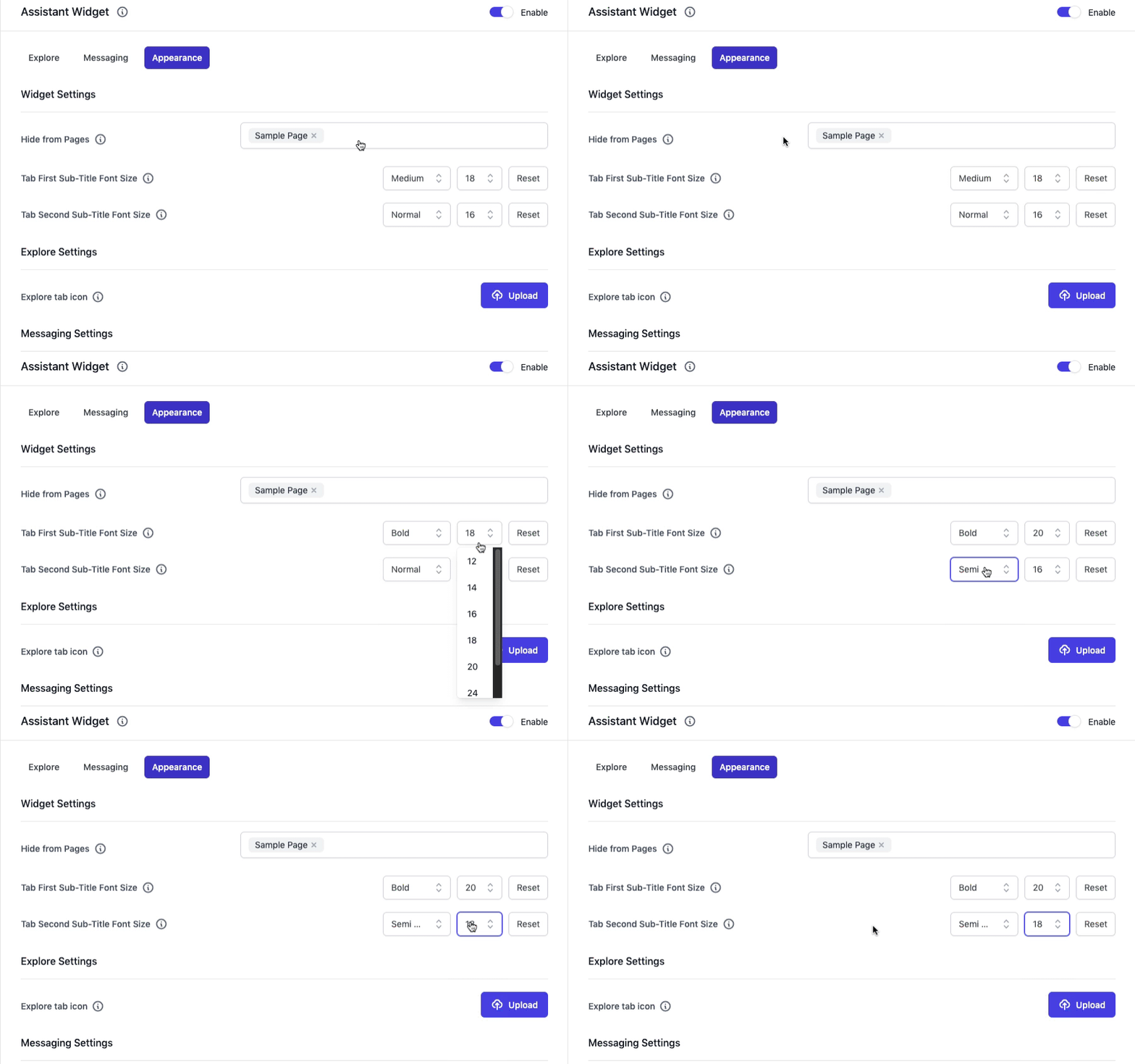
Here you can change the Explore tab icon and the Messaging tab icon. For that, you need to upload the icon for use here!
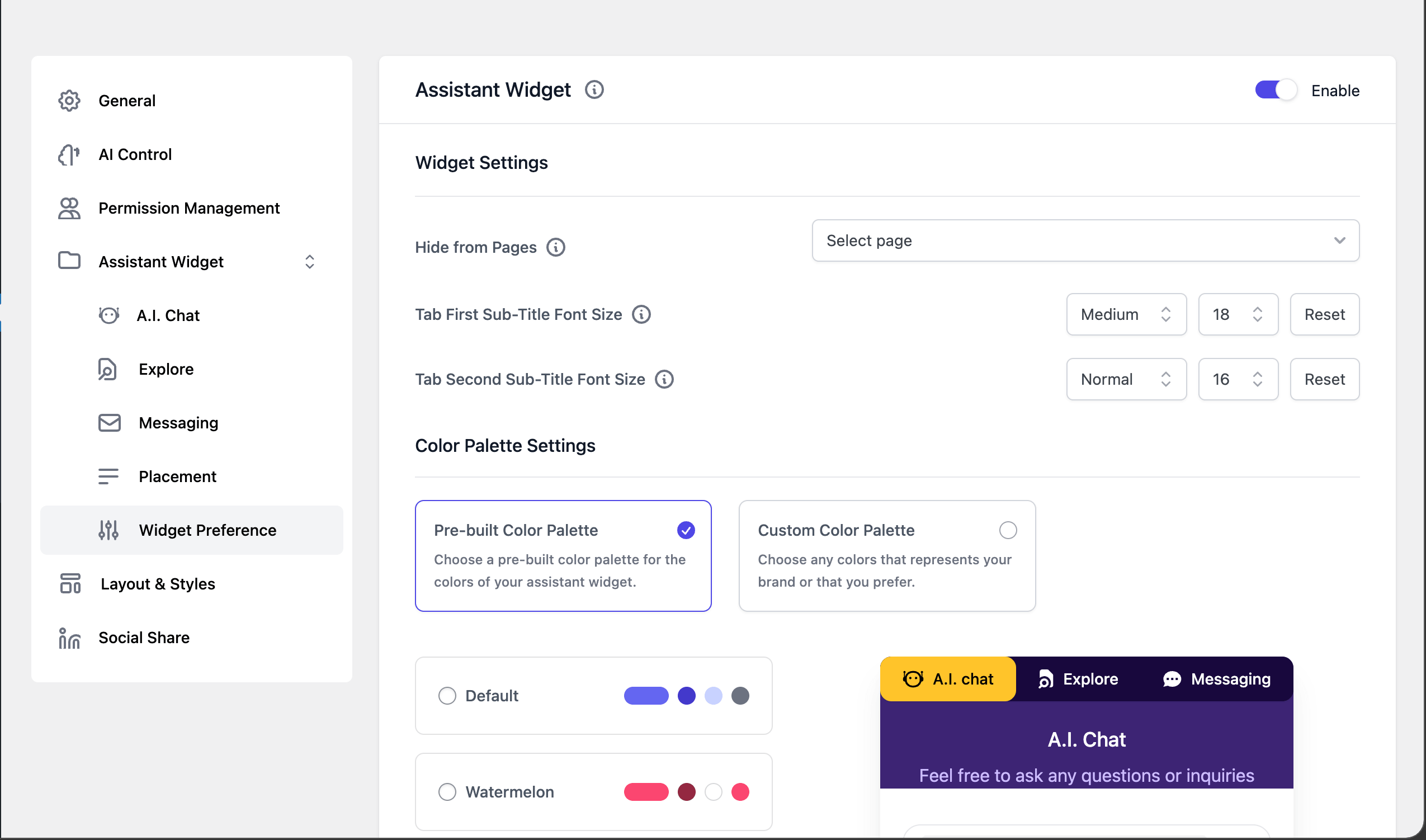
Here you have two options to stylize the color palettes: the pre-built color palette and the custom color palette.
Let’s check out them one by one!
Choose your favorite color combination from our pre-built color palette. But don’t forget to hit the save button after you choose any color palette.
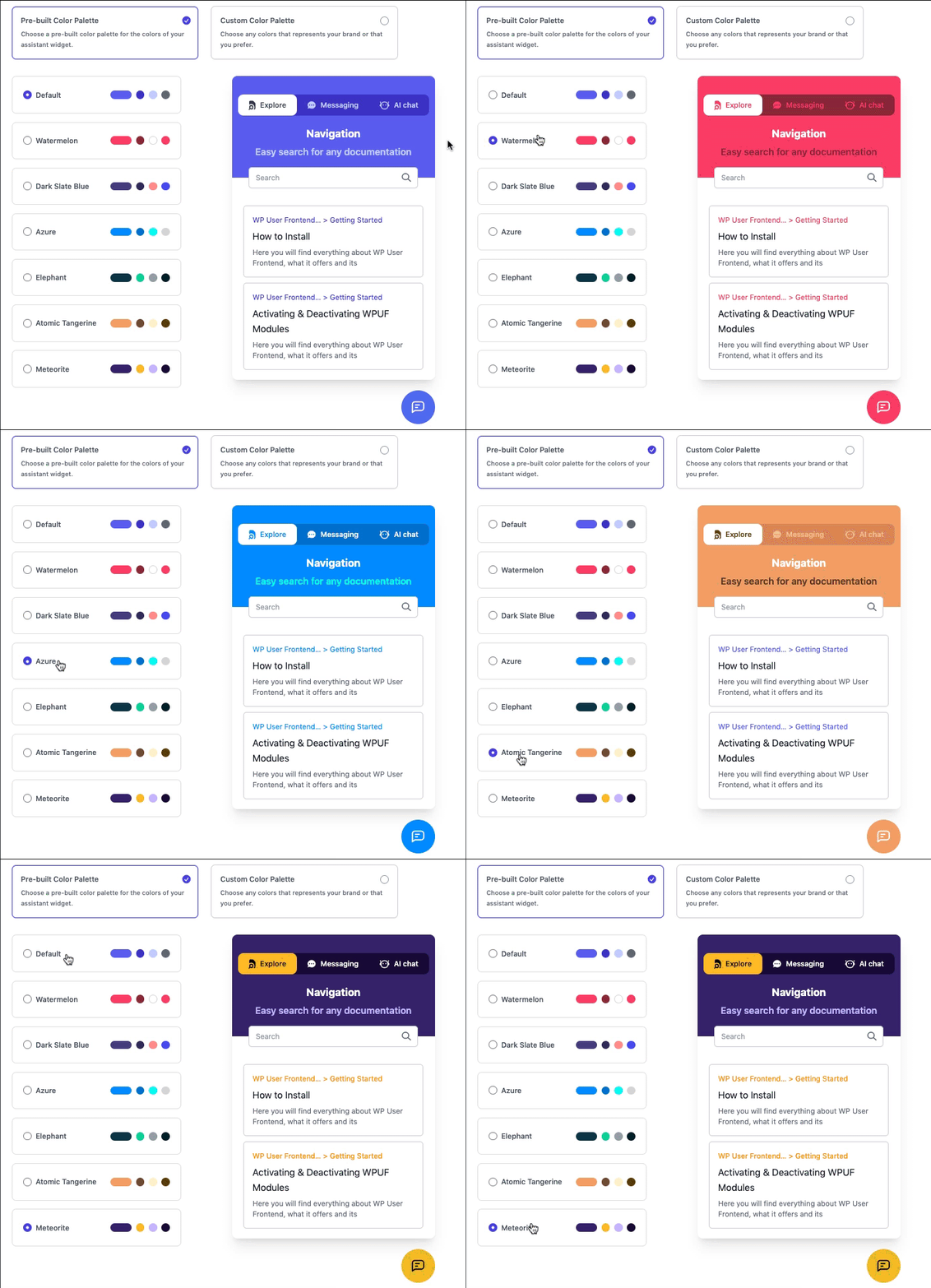
Once you save the settings with your preferred color palette, you can see them on your documentation page.
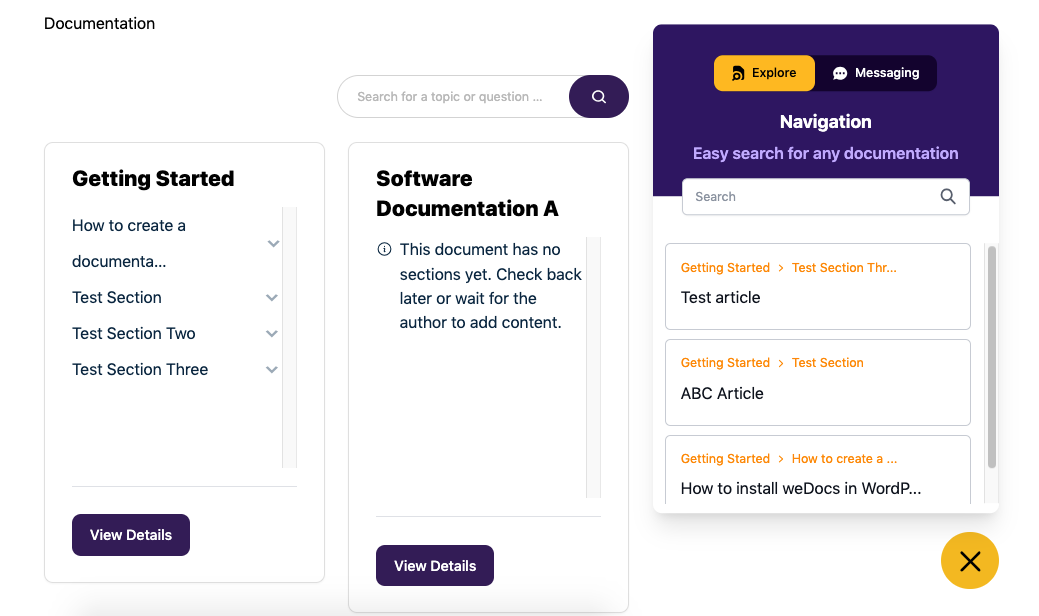
This is how you can use the assistant widget in the WordPress documentation.
Last updated on
Filed under Assistant Widget
Our support team can walk you through it.